Showing posts with label music. Show all posts

What Does Our Music Say About Us? Python Music Experiment Part 2

Subscribe to BrokenAirplane!

Perhaps you tried my class' experiment with their favorite music, finding out the frequency of a word and seeing if there was any significance in the repetition of that word. We did a another experiment where we analyzed the Billboard Top 100 for 2000-2009.

The words that came up most frequently (with a couple of random outliers) were:
Me
My
Got
We
I’m
Love
Your
Mine
With
Baby
I
You
Like
Do you see a connection? They did. Especially as they are reading Romeo and Juliet in their Humanities class. Love and possessions is what the students felt was being repeated over and over. While the profitability in increasing desire and hype over possessions is obvious, I posed to them, "Why might a lyricist or company hype up songs about love?" One student's response, "Because when you are in love you will do anything for them or buy them anything."

I then posed to them the challenge of writing a song (a good song!) that does not use any of these words. It was like lyrical Taboo. It would be interesting to see what our culture would be like if we didn't use these songs in all of our most played songs.

Subscribe to BrokenAirplane and keep up with all of the latest education and technology resources!

What Does Your Music Say About You? Python Music Experiment Part 1

Subscribe to BrokenAirplane

I love the last project of the year. I have spent an entire year with these students learning about their interests and  helping them become proficient in math, science, and programming. I like to experiement with the last project and try something new that hopefully will go well but at least can be refined for next year. I was pleasantly surprised about how this final project went and so I thought I would share it with you.

I am always on the lookout for inspiration for projects and this one began 3 years ago with a fascinating article about Pandora (sorry I don't have it anymore). I was so interested in the way the system learned what you like and don't based upon more than just genre. In fact it was based upon over 400 different factors according to the Music Genome Project on which Pandora is based. I thought this year I would have the students analyze music based upon one of those factors, lyrics.

I asked the students to find 20 song lyrics and paste them into a Google Doc. What was interesting is how often I was asked if they could use songs with profanity, violence, etc. I simply responded that I wanted them to choose their all time favorite songs or the ones they listened to the most and if they didn't then the project wouldn't work.

Next we generated some Pseudocode. I asked them if you were to sit a small child down and tell him to write down how many times a certain word came up in a song what would you tell them?

This took about ten minutes of silent thinking, erasures, and debates so don't get the impression that they got it the first time (but who does).  Eventually the class came up with this.

1
2
3
4
Go through the song.
Each time you come to a word, check to see if that word has come up before.
If it has not, write the word down and a one next to it.
If it has, add one to the count/tally.

Next, we began to translate that into Python script. It gave me an opportunity to talk about data and dictionaries which is always a plus but when we were done, they had a big smile on their face as they realized how similar their pseudocode was to the actual code. To test the code as they were building it, we used Michael Jackson's Smooth Criminal as almost everyone knows it and in my opinion it has the most epic music video of all time. It also has some funky lyrics and punctuation that allows for refining the translate function.

The quick tutorial I gave them to learn about strings can be found here, but as I said this project will be refined as will the tutorial.

1
 2
 3
 4
 5
 6
 7
 8
 9
10
11
12
13
14
15
16
17
18
from string import *
song = '''Insert Lyrics Here'''

cleanString = song.translate(None,',.:;!?') #removes these characters
cleanList = cleanString.split() #splits it into a list
    
songDict = {}
for word in cleanList:
    if word not in songDict:
            songDict[word] = 1 #if not already in the dictionary, add it
        else:
            songDict[word]+=1 #if already in the dictionary, add 1 to it
    
print word, songDict[word] #option 1

for word in songDict: #option 2
    if songDict[word] > 1:
        print songDict[word]

The first option will print out the entire dictionary without any filtering. The second option was devised by the students after seeing how many times a word came up only once and will create a threshold to only print words that show up more than once (or more if they want). I love it when they come up with a solution like that!

After they saw the output, I asked them to reflect upon what significant words came up the most for them. For some it was "I, me, you, my" etc. which they saw as an indicator of songs about love and intimacy. Others were surprised how often a curse, violent, or derogatory word came up. Since their humanities teacher is teaching them how to write Sonnets and going through Romeo and Juliet, we ran those words through the code as well. Not surprisingly, the words were very intimate since they are both romantic literature.

Feel free to use the code to analyze your own songs and if you have any thoughts for next year's version of this I would love to hear about it in the comments. I hope to incorporate more of Pandora into the next iteration as I was informed that the software uses a form of the distance formula to decide which song to play next. Ha! Take that those who think Algebra is irrelevant.

Code formatting was made possible via Hilite.me. There are other great options out there but this was the quickest for me. It also made it easy for you to copy and paste the code for your own use. If you have a recommendation of how to do it better, please let me know.

Subscribe to BrokenAirplane and keep up with all of the latest education and technology resources!

Ways Your Students Can Use Audacity

In the Audacity Tutorial you discovered the ease of Audacity to record, edit, and export your audio. But, Audacity is as powerful as it is simple to use.

Music:
I have seen many garage, Indie, and professional bands mix their work with Audacity. This is why Audacity work are called project files. In Audacity, click the drop down menu Project. From there you have the option to import other tracks from a previous recording or MIDI file. Another way to get multiple tracks in a project is to click Record like you would normally, then push stop. Pushing Record again will start another track recording.

You can also highlight a certain part of the track or all of it and click on the drop down menu Effect, there is an endless amount of things you can do to distort, modify, and change the sound.

Podcasting/Webcasting:
A podcast or webcast is simply recording of a show, lecture, general audio that is not live. It is a recording saved for later. This is incredibly useful for later recall but can also be a valuable way for your students to record their learning.

Once you have your recording, click on the Project drop down menu and click Edit ID3 tags. This is the information that shows up on your computer music player (e.g. "Title: Quadratic Equations").

Physics:
When studying sound waves it can be really helpful to see such an abstract concept visually. With Audacity you can record yourself singing (if you are so brave) or find all of the different pitches within a song you imported. To do this, click on Analyze and Plot Spectrum.

You could also record two different tracks with two different pitches and zoom in to see the waves created. If you would like to create a specific frequency, click on the drop down menu Generate and click on Tone. The students really enjoyed it when we discuss the Mosquito Ringtones, it really drives home the point about how our ear works and threshold of hearing. They freak out when they are unable to hear what their peers are able to.

For analyzing sound live, I highly recommend the Visual Analyzer software. It is so much fun to watch the students challenge each other to make the different frequencies and they love to see their music change the wave. For a typically invisible concept like sound and air pressure, I am grateful to both Audacity and Visual Analyzer for making their software free to all.

I would also like to recommend a blog post by a fellow #EdChat Tweeter David Wees. He had a lot of great ideas that I would recommend you take a look at.

Audacity is All You Need to Record, Edit, and create Audio

Audacity is one of those applications that make people amazed at the generosity and power of Open Source. Everytime I show this app, they cannot believe that this is available for free. Audacity allows you to record, edit, export sound all in one easy interface. You can download it from the Audacity website. It will work on pretty much every Operating System you can imagine.
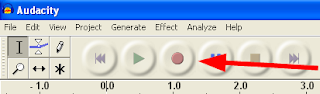
Once you have it downloaded, do a test run to make sure all of your sound settings are correct. To do this click on the big red button in the upper left. 

Talk into your microphone and you should see sound waves appear on the screen below it. If you don't see this: 1) Make sure you are talking loud enough, 2) Check your sound settings (Windows: Click on Start, Control Panel, Sound and Audio Devices, the Audio tab at the top, and finally under sound recording click Volume and make sure it is turned up)

You may already have a microphone built into your computer which is perfect for podcasting and basic recording. If you are really in a pinch, take your earbuds (like those for your iPod), plug them into the microphone slot and you have a makeshift microphone. Speakers and Microphones are pretty much the same thing just in reverse.

To playback push the Green Play button. The red line will show you where you are in the recording.

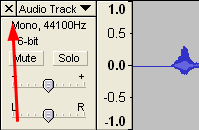
Once you are done with your test, you can delete the test by clicking on the X on the track you just recorded. 


Editing Your Track:
Let's say you are recording your speech or music and you make a mistake. Just keep going because you will edit it out later with ease. If you can edit a document you can edit audio in Audacity. After your recording is finished, use the sliders at the bottom of the screen to move it to the approximate time. The click and drag your cursor to highlight the area you would like to remove (if you are unsure if you are in the correct spot, click play and Audacity will only play the highlighted area). To remove the selection, click Backspace or Delete and your selection will be deleted and shift everything up. Couldn't be easier right?

You can do the same thing to copy and paste a selection, to repeat a sound over and over. A lot more settings can be found in the aptly named Edit menu at the upper left just as if you were editing a document.
You may find it useful from time to time to get a very specific part of your recording. Click on the magnifying glass under the menu bar. 

Move the mouse over the area to magnify, left click to zoom in and right click to zoom out. Click on the selection tool right above the magnifying glass to return to the ability to highlight and edit.

Saving and Exporting your Files:
Audacity is easy for recording and editing, but it is just as easy to create files for sharing your music or sound with the world.

Save Project for later:If you are not finished with your work just yet, you should save it as a project so you can come back to it later. Click File and Save Project. It will prompt you to save and then create an Audacity Project File (.AUP) and a Data folder. Do not separate the Project File and the Data folder or you will not be able to reopen your files.

Export WAV: A standard file that can be played on any computer. It tends to be a larger file than if you made an MP3. Click File then Export as WAV, you will be prompted to save and then Audacity will create your file.

Export MP3: One of the most widely recognized and playable sound file types in the world, you will most likely want to export your file as an MP3 as it is playable on mobile devices and is smaller than a WAV file. To export your sound as an MP3 you will need an additional free plugin. To download it, click on the following link, LAME MP3 Encoder. Once installed, you can click on File and then Export as MP3 in Audacity. 

NOTE: Audacity is using a large amount of memory to create your file. If you notice that Audacity is running slow or crashing often, close other programs and make sure you are not sharing to a networked drive. At our school, our students had a networked "My Documents" folder that it would default to saving to. This would slow down the entire network and crash Audacity. This is not a problem for those of you who are saving to your hard disk.

I hope you will find many uses for this powerful software. If you have any questions, send me an email or leave a comment. In the follow up post, I will review some of the ways you can use this software for music, podcasting, Physics, and more! Stay tuned.

Humanities Resources (English, Reading, Art, Social Studies, Theatre, Music, Foreign Language)

Although I am not a humanities teacher by trade, I do keep an eye on this kind of stuff as it is useful to my teaching partner and others. So I will maintain this list as I do the Math and Science Resources post.

For ease of compilation, I have considered humanities to involve English, Social Studies, Economics, Theatre, Music, Art, and Foreign Language.

Art:
Inkscape - A free an open source alternative to Adobe Inkscape
GIMP - A free and open source alternative to Adobe Photoshop

Communication: With either of these tools, you can set up conversations with students, teachers, speakers, authors, etc from around the world for free. All you need is a webcam.

Foreign Language Tools:
Google Translate - Easily translate documents, websites, or simply text to numerous foreign languages. Keep in mind it is not perfect but often is enough to give or get the idea.
Busuu - They say that the best way to learn a new language is immersion. However, it is rarely feasible to create such an environment. Yet with Busuu, you and your students can study with people around the world in order to learn. Best part is, it is free!
http://www.openculture.com/freelanguagelessons - Just what it says, free language lessons.


Geography:
Google Lit Trips - Take a trip through literature with your students using Google Earth.

News:
NPR - While so many newspapers/media outlets are online, National Public Radio provides all of its content online. While no source is unbiased, NPR audits itself to make sure that it is at least balanced.
http://www.newseum.org/todaysfrontpages/default.asp - An interesting website that allows you to see the front page from websites around the world. This could be very useful to compare a major event from different vantage points.
Worldmapper: Shows world maps with countries distorted to demonstrate various inequities (e.g. Income of less than $1/day, Population, Internet Penetration,etc.) 

Primary Resources:
World Digital Library - A collection of primary resources from around the world are collected and made public on this site.

Public Domain Resources (texts, audio, pictures, etc): One of my favorite sayings can be found on a bumper sticker, "It will be a great day when the schools have all the money they need and the air force needs to have a bake sale to purchase a bomber.

Until that day, we must use every resource at our disposal to bring the best to our students while working within our means. Thank goodness for the Internet. The following links provide resources to media whos authors have either made their works public domain willingly or let their copyright expire. You can contribute to these sites if you wish.

Authorama - Books
Archive - Various Media
Creative Commons - Various Media
Justfreebooks - Books
Librivox - Audiobooks
Lit2go - Books
Many Books - Books
Musopen  - Music/Sheet Music
Open Library - Books

Pdinfo - Music/Sheet Music
http://philosophy.eserver.org/ - Philosophy Texts

After the above statement and after reading this blog, you might get the impression that I stronly support openness of information, and you would be right. While I believe everyone is due what they have earned, I also believe that copyright law is too strict and does not benefit the artists or writers.

Especially with so many of our students downloading music, software, movies, etc that by current law is illegal. It is necessary for them to understand the law as it so directly affects them. Here are some resources to help you: 
Electronics Frontier Foundation - An organization which advocates openness of information and pushes back against unfair or unnecessarily strict copyright law.
Teaching Copyright - Curriculum designed to teach about copyright, open source, and other various laws surrounding this topic. You might wonder why it is necessary to do so, but current textbooks paint an unfair and negative image of open practices. As I said, this issue impacts your students as much as any other in their life.

Recording Music and Sound
Audacity - Record voice and music on multiple tracks with tons of features and effects. Free and Open Source
Tux Guitar - A free and open source tablature and score editor.
UStream - Similar to YouTube but better if you are doing a recurring show. Allows easy uploading and broadcast.

Research
Wikipedia - Scorned by teachers for far too long, Wikipedia has evolved to the point where it is actually more accurate than many encyclopedias. If you do not believe me, attempt to submit something false to it and you will see how difficult the process is.
Zotero - If Internet bookmarks are not enough to capture your research and citations, you should check out this. It promises to keep track of clippings, quotes, books, research all over the Internet in a way that is much more conducive to term papers, dissertations, etc.
NGrams - Find the history and frequency of a word.
Google Earth - Beyond the coolness factor, Google Earth allows you to take you students all over the world, literally. There are resources for Geography, Geology, Geocaching
Internet Public Library - A helpful search for resources of all ages.
World Cat - A library search engine for the whole world. I once had a book delivered to my library from England by using this!
Snopes - Exhaustive resarch into myths, urban legends, and memes. Snopes for Critical Thinking
Timelines of History - Self Explanatory.

Self-Publishing
Blurb - Used by many in our district to create books of student work/research.
Ka-blam - Print up comics, and more! This is the site that the Graphic Novel Project uses.
Lulu - Similar to Blurb, check between the two for specials and pricing.
CK12 - Create and share your textbook around the world. There are currently no humanities resources. Be the first!

Writing
Celtx - Professional yet free software for writing screenplays, comics, and scripts.
Distributed Proofreaders - A site where you could sign up to proofread uploaded texts to public domain sites. Could be useful for students to refine their grammatical skills.

World Data
World Clock - Provides data on a variety of topics like population, crime, food, etc.
Breathing Earth - CO2 emissions by country.


If you have a suggestion, put it in the comments and I will add it to the official list or if you would like more detail on one I will create a specific post/series devoted to it.