Showing posts with label gmail. Show all posts

Google Labs for Enhanced Gmail and Web

It was 2004 when Google first released Gmail and with it came the Beta tag. This sent a message to users that Gmail was safe but still in the testing phase. It was not until 2009 that the Beta went away but that didn't mean that Google was done tweaking and enhancing its product.


Updates and new features are always coming out for Google products but you don't have to wait, you can try many of them out now using Google Labs. I wanted to share with you some of the Gmail enhancements I use from the Google Labs as well as some of the products they are working on that you can play with.


Gmail Labs
To activate the new features which allow you to improve and customize your experience, click on the green beaker (Erlenmeyer Flask, for my fellow science teachers) in the upper right hand corner of Gmail to the left of "Settings".


Now you can scroll down and see the various features you can activate. There is a disclaimer that some of
these are just being tested and they cannot promise how well they will work. However, you can be assured
that they do not affect the security nor functionality of Gmail (however, on a slow connection they could make
it take longer to sign in).


Some of the Gmail Labs I have turned on are (in alphabetical order):


  • Apps Search - This allows you to search not only your email but your docs and sites as well, saving you time having to open them up separately. (Gmail Ninja)
  • Background Send - If you are on a slow connection or uploading attachments, sending an email can take valuable time when you are trying to work through your Inbox. When you click send, it returns to your Inbox so you can keep working.
  • Custom Keyboard Shortcuts - You should already be a fan of keyboard shortcuts for how much time they save you. The Gmail shortcuts are pretty handy but if you want to change what they are to suit your tastes, this lab is for you.
  • Don't Forget Bob/Got the Wrong Bob - If you are sending an email out to a group of people and you typically also send it to "Bob" then Gmail will suggest adding contacts. Very helpful when you are sending something in a rush. The other lab will make sure you didn't mean to send it to Bob A. and not Bob Z.
  • Google Docs Gadget - Allows you to view/open/create Google Docs from your Gmail. Another big time saver.
  • Google Docs Preview in Mail - Check the document via computer or phone without having to open it in Docs.
  • Inserting Images - This should definitely be a part of everyone's Gmail. From the family photos to the work presentations, having a picture directly in the email is much better than as an attachment.
  • Message Translation - If you are working overseas, or your students have difficulty conveying their thoughts in your language then this is a must.
  • Right Side Chat - The right side of Gmail is empty, so why scroll down to see your chats?
  • Send and Archive - For all of my fellow ninjas out there, save even more time by combining the send and archive actions into one convenient button.
  • Smart Mute - If you are not already using the Mute  button then you are missing out. If you subscribe to a group that is talking about something you are no longer interested in, or if your co-workers keep pushing reply all then select the message, click the More Actions button and then Mute. This will prevent you from having that message pop up again. The Smart Mute enhancement just refines the Mute and makes it even less likely that you will receive that "+1" or "me too" over and over.
  • SMS in Chat/SMS in Chat Gadget - I use this when I need to stay connected to parents, students, co-workers, and friends. It is not always opportune or convenient for you to send or receive text messages from your phone, but now you can do it through Gmail. Really helpful for those who can only be reached by text.
  • Title Tweak - I often have my Gmail minimized and with this enabled the number of emails I have yet unread is displayed instead of Gmail - phil@....

  • Undo Send - Hallelujah for this lab. I don't ever say stop reading my blog, but go and enable this now. I'll wait. Whether you forgot a recipient, attachment, or wished you hadn't responded so harshly, this provides you with up to 30 seconds in which to undo that email.

Other Google Labs to Check Out
App Inventor - Now you can design your own Android apps from any computer. Just sign into this web based app designed and watch the tutorials.


Google Alerts - Set it up to notify you whenever something new is published about the search term (e.g. Android Update for my Phone)


Google Body - I showed this to one of our Biology/Anatomy teachers and she was ecstatic. Although there is stil a ways to go before this can replace your copy of Gray's Anatomy, it gives a great visual for students of all ages.


I love how Google uses the 80/20 rule to encourage its employees to pursue their interests. Many of our favorites like Gmail came from people following their passions and with this culture of experimentation, Google is bound to continue innovating amazing products.


Do you have a favorite lab or feature that we should enable/use? Leave a comment to tell us about it!


Subscribe to BrokenAirplane!

Gmail Priority Inbox - Enable to See Your Most Important Emails First

You may be aware of the fact that 80-95% of all email sent each day is SPAM. SPAM is email that is junk to you and most everyone else (e.g. advertisements, unsolicited emails, etc). If you have Gmail, it is very effective at filtering out your SPAM and keeping you from ever seeing it.

Another email anomaly that we have all experienced is Bacn (pronounced Bacon). Bacn is email that you have asked for or from people you know but is not immediately important. There are plenty of blogs and newsletters that I have subscribed to but do not necessarily want cluttering up my email and preventing me from seeing that which is most important at that moment. Or you may want to ensure that certain people or emails get shunted to the top when you receive them (e.g. meeting changes, your boss, etc).

Gmail has recently introduced Priority Inbox to help out with this. It rolled out in part last week but by now everyone should have access to it. I encourage everyone to try it out and see if you like it. For my fellow Gmail Ninjas with very few emails in your Inbox, this may not be necessary for you. However, if you receive an overwhelming number of emails each day/week, this may be your favorite tool. 

You can activate it with the follwing: Click on Settings in the upper right. From the options at the top, select Priority Inbox, at the bottom select Show Priority Inbox, finally click Save Changes.

Now you should see your email divided up into 3 sections: Important and Unread, Starred, and Everything else. While this might be perfect for most of us, you may wish to go into the Priority Inbox settings again and customize it for yourself.

If you click on Add Section next to #3 (the empty one) you could also add the "Unread" filter for your email (which I have), and if you click on More Options you could select a filter as well.

If you click on Options next to the other Priority Inbox Settings you can change how many emails could appear in each section, the option to hide the section when empty (which I selected to keep things orderly), and the option to remove the section.

If you have set up filters for yourself, you can also select further on down whether or not Priority Inbox overrides this (the majority of you will not wish to override them unless Priority Inbox makes your filters redundant).

Click Save Changes and you will be taken back to your Inbox however it has now been split according to the sections you set up.

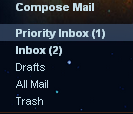
Priority Inbox refers to your unread and "important" emails whereas the Inbox indicator below it tells you how many total unread emails you have. You may look at your "important" emails and disagree with this qualification. This is because you have to train Priority Inbox to fit your needs.

The way emails are determined to be "important" or not is the frequency in which you send or receive an email from that person. However, this could be misleading if you have a newsletter that your receive everyday or a coworker that you email about your fantasy football team. 

In order to train Priority Inbox you select an email you think is important but is not considered important and click the yellow plus sign. If there is an email considered important but you do not consider important then select that email and click the gray minus button.


If you have selected it in the settings, you also have the option of starring an email and having it land in a separate spot. 

While this may actually seem like it will take more time out of your busy schedule, remember the words of Benjamin Franklin, "An ounce of prevention is worth a pound of cure." Taking the short amount of time to train Gmail which emails are important to you will ensure that you are always looking at what is most important. 

For those of you with a large number of emails your previous way of reading email was:
Hmm, I have a lot of emails, lets see which one is useful....no...no...no...and so on. 
The result? Wasted time and effort.

With Gmail Priority Inbox:
Hmm, I have a lot of emails,
-First I'll read my Important and unread Emails
-Next I will read my unread emails (BACN) at my leisure.
The Result? Know that your most important emails are taken care of and then handle the other emails.

Disclaimer: Priority Inbox rolled out just a week ago and while it is in Beta and works well, it is not infallible. Until you are confident in how you have trained it, skim your other emails to ensure you didn't miss anything.

If you have any questions or comments leave a comment. I hope that this provides help to those of you who need it. Until next time!


Links:
GSites - Websites
GForms - Data Collection and Surveys

Staying Connected to Parents, Friends, and finding Others to Collaborate With

We are given an incredible amount of trust. Parents who have spent years loving and raising their children are handing them over to us for 8 hours a day. Placing their hopes and dreams in our hands, allowing us the opportunity to help students grow and mature.

Multiply this situation many times over and you will have the modern day teacher's great responsibility. With so much at stake it is critical that we keep in contact with our parents so we can best understand how to help their children as well as keep them informed. It is my belief that parents will do everything they can to help their students get the best possible education they can. Parents can support with time, talent, and resources only when they best know how they can do so.

There are many great resources for communicating with your parents, each with their strengths depending on the situation. Here is a list of ways you can keep in touch with your parents.
  • School Phone/Phone Call Home
  • Email
  • Newsletters/Letters home
  • Text messages/Texting with Gmail (free)
  • Facebook, Twitter, and other social media (free) note: make sure to keep a separate account from your personal account
  • Skype Internet Phone 
    • Strengths: Not giving out your personal number, can be used anywhere you have a computer and some phones. Video conferences are possible.
    • Weakness: Only free if you are calling another Skype user.
  • Google Voice
    • Strengths: Not giving out your personal number, can be used anywhere you have a computer and some phones.  Video conferences are possible and calls are free in the US and Canada (confirmed until the end of the year).
      • As of now you can make phone calls from within Gmail. This is the best option as of now. It should be interesting to see how this develops. Personally, I see this as a huge game changer in the communications market. 
      • After installing the plugin from the link, go back to Gmail and in the chat window you will see the button Call Phone.
    • Weakness: There is no assurance as to how long this will remain a service or be free for US and Canada. This service is not available for Google Apps.
  • Google Translate
    • While not a communication medium in and of itself it is important to be able to try and communicate across language barriers.
    • Note, all translators are imperfect in its translation so do not rely to heavily upon it.

    Gmail Ninja or How to Have an Empty Inbox

    Do you fear signing into your email box because it looks like this?

    Are you missing important emails because they just keep piling up?

    Whenever I give training one-on-one or in groups, someone always stops me and says, "How do you keep your Gmail Inbox empty?"

    Yes folks, I am a Gmail Ninja. I am also a huge fan of David Allen's Getting Things Done philosophy. All of us are busy and most likely we are getting emails from friends, family, colleagues and it is enough to go crazy and give up. Yet, BrokenAirplane.com is here to save the day!

    Keeping your Gmail (or email in general) manageable does not require you to sit and read emails all day. In fact if you know how to use Google Search then you can find peace once again and rule email instead of the other way around.

    Step 1: Open your Inbox. Sounds silly, but you would be surprised how many people are avoiding it because it is so overwhelming. Take a nice deep cleansing breath, it's going to be ok.

    Step 2: Decide if you need to create labels (link to earlier post on Labels), which are like Google's Filling System. You might create labels like "Parent Emails, Funny Emails, Student Work, etc". These are completely optional, but they do help many to organize their email.

    Step 3: You may wish to set up some filters. I use them when my students send me homework so they automatically go to my "Student Work" folder. Here is a link on how to setup your own filter in Gmail.

    Step 4: Now the fun begins, read the first email and decide what needs to be done with it. In my opinion there are three options:
    1. Delete it because it is just quick information and you no longer need it (e.g. meeting changed to 3pm, or Jimmy will be absent today). If you decide to delete an email, don't worry as Gmail will still save your deleted emails for up to 30 days before it goes away. I'll show you how to get it back in a minute.
    2. File it away in a label or archive it if you will need the email later but it no longer needs to be in your inbox. (e.g. parent email, receipt from vacation airline booking, etc). In order to do this, either click Archive which saves your email in your Gmail storage but removes it from your Inbox. Or click the Move To menu button and select which label you want to file the email away to. Once again, I'll show you how to retrieve your emails in a second. Keep in mind that this process takes the email out of your Inbox but it is still stored in your Gmail as opposed to deleting it.


    3. Add it to your tasks. Tasks is Gmail's built in ToDo list. I use this for those situations where I need to be reminded to do what is in the email. (e.g. grant proposal instructions, project notes to refine, Agenda for All Staff Meeting).
      • Click on the Tasks button on the left to activate your Gmail Tasks.
      • Now select an email that you want to add to your GTasks by checking the box next to the email.
      • Click on the menu that says More Actions and then click on Add to Tasks. This will add it to your tasks with the subject of the email being the reminder. You can click on the smaller link Related Email in your tasks if you want to quickly refer to the email.
      • Finally, archive the email unless you need to keep it in your Inbox.

    If you have a lot of emails this initial process will take some time. However, once you have processed all of your old emails you can make the decision to delete, archive, or add to tasks in seconds without distracting yourself from your primary focus.

    How to Retrieve Emails

    So you have archived your emails and are biting your nails wondering where in the world did my email go? Now it is time to realize the power of having Google power your email. Once your email is archived, retrieve it by searching for it.

    Right next to the big Gmail icon in the upper left is the familiar Google Search bar. Try searching for the subject, sender, text in the email, or anything else that you can remember. Gmail will quickly search through your emails and find anything that relates to your search. The more specific you are, the less results you will get so if you can't find it at first, try being more broad.


    So that's it. Ok, well there is a ton more you could uncover but these steps will get you to that heavenly state called "The Empty Inbox".

    If you have any questions, comments, suggestions, or otherwise leave a comment.

    Google Apps Tutorial Part 2 Gmail, Labels, Filters, and Chat

    Email has been available to the public since the 1980s and it meant just that, Electronic Mail. Send, reply, and delete was pretty much your options but slowly more and more features started to appear.

    Gmail has it all, and while this post is limited to some ways it could be used in the classroom, it is well worth your time to discover all of the options provided to you. This post is also not a list of my "Gmail Ninja" tricks (e.g. how to keep your Inbox from overflowing) but I will happily do a post on it if someone requests it.

    Without further ado, lets explore the power of Gmail for education:

    Labels: This is Google's version of filing folders. We all have them, the places where the hundreds of papers we receive every day from our classes get filed. With Gmail Labels you can 1) never lose a paper again 2) cut down dramatically on paper usage. Gmail can save all of your student work to be retrieved an dealt with when you want to. I use this everyday and it allows me to never wonder where my student's work is because I can retrieve it from anywhere.

    Step 1: Click on "Labels" and then "manage labels"


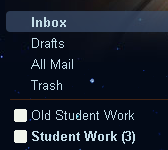
    Step 2: Create the labels you want to use. I created one called Student Work and another called Old Student Work.

    Step 3: Now have your students send you their assignments in an email.
    When you receive that email it will enter your Inbox. To give it a new label click on the "move to" button and select the label you want to use.


    That's it! Your student's work has been moved to the label and you can get to it whenever you want without cluttering up your Inbox or wasting trees. Once you are done with the email you can always Archive it or move it to another email.

    I never delete any email I receive from a student or parent until they graduate in case there is a need to refer to it. Don't worry, Gmail gives you more than enough free storage space to do this.

    Some other ideas for labels could be:
    Parent Emails, Term Papers, Homework, Reports, etc.

    Chat: Sometimes, email is not quick enough or powerful enough to get your point across. I have heard that 80% of what we say is through non-verbal communication, so you could imagine how frustrating or confusing it could be to just use email. Written and Voice chat come already installed in your Gmail account just click on a name (if you don't have any names listed, click the add contact button) and start typing to them. Or if you have a microphone you can begin talking back and forth as if you were on the phone.

    The most significant use of Chat that I have found is through video chat. This does require a quick and free install and any $20 webcam. After going through those instructions, you can set up a video chat with your colleague, student, and anyone else that has a Gmail account. I have used this with Patrick Yurick, to create video conferencing with teachers on the opposite side of the country.

    In an example from his classroom, he set it up so his Graphic Design students could create the music video for the band It's from the Sky. In order to receive feedback from the band members on the East Coast, these students in California presented their ideas via Gmail Video Chat. The final result was this amazing video.

    Think about the possibilities, you could bring primary sources, authors, and experts from around the world into your classroom. I have seen Karl Fisch create amazing opportunties for his students to interact with experts through this type of medium (click here for an example). Coming back to the equity issue, we are no longer limited by our geographical location or ability to raise funds for travel, the world is just a click away and we can bring these to our students.

    I hope that you have new ideas coming to mind as a result of these technologies. If you have any questions, tips, or ideas, please leave a comment below.

    Next post: Google Documents and the power of collaboration!


    Links:
    GSites - Websites
    GForms - Data Collection and Surveys

    Changes to Gmail

    I am sure you will see it when you sign into Gmail as I did, but there are some formatting changes to Gmail. Some are superficial but some are worth noting.


    However, anything that we have discussed on BrokenAirplane is still possible, the button might simply be in a different place.

    Tags:

    Sending Text Messages Through Gmail

    Hi everyone,
     Sorry to interrupt the series but I always want to try and help someone out that needs it. The series will continue right after this post.

    On the Edutopia boards there was a question about contacting parents. Many suggested sending text messages through your phones since so many people have phones and are at them more frequently than their computer.

    I agree 100%, but my only concerns would be:

    1. Taking the time to text each parent "Open House is at 7 pm" would take a long time.
    2. Sharing your personal phone number might not be something you wish to do with your students/parents.
    3. This could end up costing you in text message fees.
    4. This will tie up your phone and fill up its memory rather quickly.
    So my suggestion was to use your Gmail account to send the text messages. My reasons for this are:
    1. You can cut and paste your text from one to another so repeating is easier.
    2. Your email address will be sent out and not your personal phone number.
    3. Any replies will come back to your Gmail account and not your phone which could save you a night on your phone.
    4. You are not charged for the texts from Gmail
    5. Gmail will store these texts in your history if you wish. This is useful if you ever need to recall or prove that you were in contact with parents.
    In order to do this we are going to use our Gmail account and Google Labs. Don't let the name fool you, while they are still experimental in the sense that they are still fine tuning these add-ons, they are of high quality, reliable, and have all the same protections that Gmail offers.

    Here's how you enable texting through Gmail:

    1. Scroll to the bottom of your Gmail account and ensure that chat is enabled. You should see it say, "Turn Chat Off" which indicates that you chat is actually on.

    2. Next look at the upper right for the green beaker. This is the button to access Google Labs.


    3. Enable "SMS in Chat Gadget" and "Text Messaging (SMS) in Chat". In my opinion you should also enable  "Right Side Chat" as this saves you from having to scroll down to see your chat.


    4. Scroll to the very bottom of the page and click "save changes"


    You should now see on the left hand side of Gmail a section that says "Send SMS"


    How to Send a Text Message in Gmail:


    1. Type in the phone number you wish to send the text message to.
    2. A pop up should appear that asks for the contact's name. Type in the name and click save.

    You only need to do this step once for each number as it is just adding it to your chat list.

    If you look at your chat window now you will see the normal green, orange, and red dots for those who are available, idle, or busy; but now you have an additional icon that looks like a tiny cell phone with the contact you just added.


    3. To send the text message, click on the person's name as if you were going to have a regular Google Chat with them.

    A new popup will appear just like Google Chat and you can type and hit enter to send the text.


    Congratulations your text message has been sent! You can repeat the process of adding the contacts (which you only have to do once) and then just select the individual contacts for each text message.

    As it mentions in the above picture. Keep in mind that each message you send will cost them the same as a regular text message (but not you) so choose your words carefully. Also to prevent spamming, you are only permitted a certain number of messages. Once they respond, that number is reset.

    I hope this helps you, if you have any questions, comments, or would like help with another part of technology  and education please don't hesitate to leave a message in the comments!