Here's what you need to know, Google's looking for an awesome educator.
A couple of years ago, +Dan Meyer posted that the Curriculum Fellow job at Google he had previously worked on was hiring again. I saw that post, and immediately posted my resume to the Google Jobs website. I had no idea how much that action would change my life.
I was very happy as an educator. I worked at an awesome school that used Project Based Learning and had a great robotics team. But there were two things that compelled me to apply. First off I told my students and friends that the only two things that would make me leave my classroom were if the Mythbusters or Google wanted me to work for them. The second was how much I wanted to see others use Computer Science and Computational Thinking in their classroom.
I blogged often about Computational Thinking but I still wanted to reach a wider audience, plus it is difficult to create high quality lessons when you have a class everyday. Since working at Google I've been able to accomplish both of those things (in my humble opinion). The Exploring Computational Thinking reaches many educators each month who are starting to implement the lessons but more importantly the philosophy and tools into their classes. I've also had the privilege of working on many other awesome projects impacting education.
I'm happy to pay it forward and let you know about another awesome opportunity for educators, take a look at the job posting and see if it would work for you. You will have amazing managers, an exciting mission, and you will have freedom to create and innovate. Sounds awesome? You have no idea....
The views expressed here do not necessarily represent those of my employer.
Showing posts with label google. Show all posts
Showing posts with label google. Show all posts

Physics Gizmo is updated to version 2.2
Physics Gizmo is updated to version 2.2 for phones running Gingerbread, Honeycomb, or Ice Cream Sandwich.
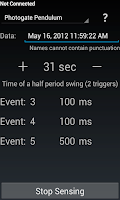 If you are running Ice Cream Sandwich (Android version 4.0), this update brings with it a visual refresh in alignment with the new look and feel.
For everyone else, Physics Gizmo will no longer close if you choose not to turn on Bluetooth. This is a bug I have wanted to resolve for a while, and I appreciate your patience.
Bluetooth is necessary to connect two phones as a photogate (video), but if you don't turn on Bluetooth the other sensors work just fine.
Thanks to everyone who uses and tells others about Physics Gizmo. Please let me know your comments, feedback, and requests and I would appreciate it if you leave positive feedback/rating in Google Play.
 If you are running Ice Cream Sandwich (Android version 4.0), this update brings with it a visual refresh in alignment with the new look and feel.
For everyone else, Physics Gizmo will no longer close if you choose not to turn on Bluetooth. This is a bug I have wanted to resolve for a while, and I appreciate your patience.
Bluetooth is necessary to connect two phones as a photogate (video), but if you don't turn on Bluetooth the other sensors work just fine.
Thanks to everyone who uses and tells others about Physics Gizmo. Please let me know your comments, feedback, and requests and I would appreciate it if you leave positive feedback/rating in Google Play.
See the original Physics Gizmo post for more background and information about the app.
Subscribe to Brokenairplane to see how Education is shifting and educators are innovating!
YouTube for Schools Opens Resources Up to the Classroom
You're sitting at home, planning a lesson when suddenly you come across the most incredible video to supplement what you are trying to convey. Unfortunately, YouTube is blocked in your school and this is not option. I have encountered this situation numerous times or when I am in the classroom working with students and a question comes up that would be perfectly illustrated with a video.
It's a shame that so much great content is blocked. The justification makes sense, students might get distracted and some of the content online might be inappropriate. Thankfully YouTube has developed a way that we can have the best of both worlds. With YouTube for Schools, it is now possible for schools to unblock and access the large amount of content on YouTubeEdu safely as potentially offensive related videos and comments are disabled.
I am so honored to have worked with the YouTube team on this project. I knew it would make a huge difference in student's opportunities to learn from all of the excellent quality out there.
One great feature of YouTube for Schools are the hundreds of teacher curated videos aleady aligned with the Common Core Standards for English Language Arts and Mathematics. For Science the National Science Education Standards were used and for History/Social Studies the videos were aligned to the California State Standards. Now you can easily find videos to supplement whatever you are working on.
With all of the great content available on YouTube, you would think all of the best videos have already been uploaded right? Think again. Every one of you has a great video, lesson, experiment, project, story to share and now you can.
Here is my favorite part: schools can add their own videos to their personal unblocked playlists. If you would like to suggest your own playlist to add to YouTube for Schools, submit it to YouTube.com/Teachers where you can see all the playlists without a login.
With this new tool to support student learning, some examples of how you could use videos in the classroom are:
1) Show a visual representation of a concept after a lesson.
2) Record an important lecture or activity so students can review it later (especially if they were absent).
3) Create a video for when you are absent to help the students and substitute know what to do.
4) Flip your classroom.
The last one, is really exciting. Upload a video and ask students to watch it at home. Then when they come to class, your time is free to go deeper into the subject, do an experiment or project, and all of the other things you wished you could do if you had more time.
Don't stop there, use the tools on the web to support your students and have them support each other.

 However you do it, now students have a way to give specific feedback at their leisure (not constrained to class schedule or intimidated by peer pressure). You can refine the video if it was confusing to a lot of students and explain it better the next day in class. This kind of feedback might be difficult to obtain in class but now you have a way to assess student's learning and understanding as often as you would like.
YouTube for Schools opens your classroom up to the resources of the world. Teachers are empowered to supplement their lessons as well as share the amazing things they do with everyone.
Original Link from YouTube Blog - Opening Up a World of Educational Content with YouTube for Schools.
Subscribe to the BrokenAirplane blog to keep up to date with all things awesome in education!
It's a shame that so much great content is blocked. The justification makes sense, students might get distracted and some of the content online might be inappropriate. Thankfully YouTube has developed a way that we can have the best of both worlds. With YouTube for Schools, it is now possible for schools to unblock and access the large amount of content on YouTubeEdu safely as potentially offensive related videos and comments are disabled.
I am so honored to have worked with the YouTube team on this project. I knew it would make a huge difference in student's opportunities to learn from all of the excellent quality out there.
One great feature of YouTube for Schools are the hundreds of teacher curated videos aleady aligned with the Common Core Standards for English Language Arts and Mathematics. For Science the National Science Education Standards were used and for History/Social Studies the videos were aligned to the California State Standards. Now you can easily find videos to supplement whatever you are working on.
With all of the great content available on YouTube, you would think all of the best videos have already been uploaded right? Think again. Every one of you has a great video, lesson, experiment, project, story to share and now you can.
Here is my favorite part: schools can add their own videos to their personal unblocked playlists. If you would like to suggest your own playlist to add to YouTube for Schools, submit it to YouTube.com/Teachers where you can see all the playlists without a login.
With this new tool to support student learning, some examples of how you could use videos in the classroom are:
1) Show a visual representation of a concept after a lesson.
2) Record an important lecture or activity so students can review it later (especially if they were absent).
3) Create a video for when you are absent to help the students and substitute know what to do.
4) Flip your classroom.
The last one, is really exciting. Upload a video and ask students to watch it at home. Then when they come to class, your time is free to go deeper into the subject, do an experiment or project, and all of the other things you wished you could do if you had more time.
Don't stop there, use the tools on the web to support your students and have them support each other.
- With Google+ Hangouts, your students could form a study group and watch the video together to discuss.
- Have students add comments to a Google Spreadsheet that can be reviewed the next day (example), its really easy to make a column filled with times.
- Type 0:00:00 into Cell A2 and 0:00:01 in Cell A3 (or 0:00:05 to skip by 5 seconds, etc).
- Highlight both cells then grab-and-drag the blue box in the corner.

- Use Google Moderator to take questions just like the president.
- Another option is to use a Google Form and collect data that way.

YouTube for Schools opens your classroom up to the resources of the world. Teachers are empowered to supplement their lessons as well as share the amazing things they do with everyone.
Original Link from YouTube Blog - Opening Up a World of Educational Content with YouTube for Schools.
Subscribe to the BrokenAirplane blog to keep up to date with all things awesome in education!
TED Videos with Computational Thinking
Cross posted on the Exploring Computational Thinking Forum:
A colleague of mine wanted to understand more about one of the projects I am working on at Google. He is an Artist and felt that Computational Thinking was something he used everyday but still a little unsure. I decided to send him a bunch of TED videos showing how much we use and rely upon Computational Thinking everyday.
 When I began to look through the TED Videos, I was amazed at how many of them relate to computational thinking in some way or another and that is why these videos amaze us. TED videos showcase people doing extraordinary things and seeing the possibilities when we look at the big picture.
See if you can find the 4 aspects of Computational Thinking in each video:
Whether you are an artist, scientist, Engineer at Google, or student, Computational Thinking is present and makes possible the world we see. I hope these videos are equally useful to you in explaining to others what Computational Thinking is:
How Algorithms Shape Our World - If you thought Algorithms were only used by computer scientists, think again.
The Best Stats You've Ever Seen - Hans Rosling shows how big data and patterns can tell humanity's story. Al Gore did something similar with big data to show humanity's impact upon the planet.
Making a Car for the Blind - You may have heard of Google's Autonomous Car but what about a car that allows the blind to drive?
Synthetic Life - Craig Venter started the human genome project and they used that information to make the ultimate algorithm, a synthetic cell
What We Learned from 5 Million Books - Hilarious as well as inspiring as we see what happens when we start looking for patterns in our books. This is the power behind Google Translate.
Nature in Architecture - Many of our most useful innovations have come from emulating nature.
Teaching Kids Real Math with Computers - In this viral video, Conrad Wolfram says that math > calculation and with Computational Thinking we can teach students far more than we ever thought.
Computing a Theory of Everything - Stephen Wolfram, shows how knowledge is related and can be used to better understand the universe.
The End of Theory - Not a video, but a revealing article about why students need to learn how to work with data and statistical analysis.
Connect with BrokenAirplane to stay up to date with all of the latest in Education and Technology
A colleague of mine wanted to understand more about one of the projects I am working on at Google. He is an Artist and felt that Computational Thinking was something he used everyday but still a little unsure. I decided to send him a bunch of TED videos showing how much we use and rely upon Computational Thinking everyday.
 When I began to look through the TED Videos, I was amazed at how many of them relate to computational thinking in some way or another and that is why these videos amaze us. TED videos showcase people doing extraordinary things and seeing the possibilities when we look at the big picture.
See if you can find the 4 aspects of Computational Thinking in each video:
- Decomposition - Breaking down the data
- Finding the patterns in the data
- Generalizing your findings and discovering the big idea
- Turning them into a set of instructions that others can reproduce
Whether you are an artist, scientist, Engineer at Google, or student, Computational Thinking is present and makes possible the world we see. I hope these videos are equally useful to you in explaining to others what Computational Thinking is:
How Algorithms Shape Our World - If you thought Algorithms were only used by computer scientists, think again.
The Best Stats You've Ever Seen - Hans Rosling shows how big data and patterns can tell humanity's story. Al Gore did something similar with big data to show humanity's impact upon the planet.
Making a Car for the Blind - You may have heard of Google's Autonomous Car but what about a car that allows the blind to drive?
Synthetic Life - Craig Venter started the human genome project and they used that information to make the ultimate algorithm, a synthetic cell
What We Learned from 5 Million Books - Hilarious as well as inspiring as we see what happens when we start looking for patterns in our books. This is the power behind Google Translate.
Nature in Architecture - Many of our most useful innovations have come from emulating nature.
Teaching Kids Real Math with Computers - In this viral video, Conrad Wolfram says that math > calculation and with Computational Thinking we can teach students far more than we ever thought.
Computing a Theory of Everything - Stephen Wolfram, shows how knowledge is related and can be used to better understand the universe.
The End of Theory - Not a video, but a revealing article about why students need to learn how to work with data and statistical analysis.
Connect with BrokenAirplane to stay up to date with all of the latest in Education and Technology
Android + Science with Physics Gizmo
Science equipment can be expensive and yet many of your students have Android phones. Why not put this incredible technology to use for learning. Physics Gizmo allows you to collect scientific data in your classroom, at home, or even in space using only the phone.
Download Physics Gizmo from Google Play
Physics Gizmo is Open Source
I've put the source to Physics Gizmo on GitHub. If you are interested in helping me develop a tool for students to collect and analyze scientific data in an affordable way I encourage you to join the project.
Physics Gizmo on GitHub
Discussion Group Forum
For inspiration, here's an experiment using Physics Gizmo - via +Roberto Catanuto (@RobertoCatanuto)
Version 2.3
This version no longer requires you to turn on Bluetooth when the app starts. The only time you need to turn it on is if you wish to use two phones as a photogate (see below).
Version 2.2
Physics Gizmo is updated to version 2.2 for phones running Gingerbread, Honeycomb, or Ice Cream Sandwich.
If you are running Ice Cream Sandwich (Android version 4.0), this update brings with it a visual refresh in alignment with the new look and feel.
For everyone else, Physics Gizmo will no longer close if you choose not to turn on Bluetooth. This is a bug I have wanted to resolve for a while, and I appreciate your patience.
Bluetooth is necessary to connect two phones as a photogate (video), but if you don't turn on Bluetooth the other sensors work just fine.
Version 2.0
Now there are more opportunities to conduct scientific experiments with your phone.
New Sensors
Using the phone's proximity sensor (usually in the upper left of the phone), Physics Gizmo has three new options for collecting data:

Updated Accelerometer Sensing
Using Physics Gizmo
I am really excited to see it used by students. I was originally inspired to create the app for my colleague who takes his students to Magic Mountain for Physics Day. Now they can collect accelerometer data on all of the rides and analyze the data back at class! That data will help them build their own roller coasters. The photogate sensors were inspired by my other colleague who creates pinewood derby cars but was always looking to improve the accuracy of the racing data.
The point is, now students can learn science with a phone they already use everyday. Please share in the comments how you used the app!

How Did I Get Here
A while ago I created an app using Python and Android so everyone could collect data for science experiments. That post became one of my top all time read posts. But, I worried that all you did was read it. You see, I made a couple of mistakes that I wouldn't let students get away with:
The Apress are my favorite Android books so far. I used, Android Apps for Absolute Beginners, Beginning Android 3, and I just ordered Learn Java for Android Development so I can gain an even deeper understanding of how this works. I intend to fully immerse myself in Android programming this year so I can make some apps that can support learning.
Connect with BrokenAirplane and stay up to date with the best resources in education.
Follow my microblogging on Google+
Download Physics Gizmo from Google Play
Physics Gizmo is Open Source
I've put the source to Physics Gizmo on GitHub. If you are interested in helping me develop a tool for students to collect and analyze scientific data in an affordable way I encourage you to join the project.
Physics Gizmo on GitHub
Discussion Group Forum
For inspiration, here's an experiment using Physics Gizmo - via +Roberto Catanuto (@RobertoCatanuto)
Version 2.3
This version no longer requires you to turn on Bluetooth when the app starts. The only time you need to turn it on is if you wish to use two phones as a photogate (see below).
Version 2.2
Physics Gizmo is updated to version 2.2 for phones running Gingerbread, Honeycomb, or Ice Cream Sandwich.
If you are running Ice Cream Sandwich (Android version 4.0), this update brings with it a visual refresh in alignment with the new look and feel.For everyone else, Physics Gizmo will no longer close if you choose not to turn on Bluetooth. This is a bug I have wanted to resolve for a while, and I appreciate your patience.
Bluetooth is necessary to connect two phones as a photogate (video), but if you don't turn on Bluetooth the other sensors work just fine.
Version 2.0
Now there are more opportunities to conduct scientific experiments with your phone.
New Sensors
Using the phone's proximity sensor (usually in the upper left of the phone), Physics Gizmo has three new options for collecting data:
- Photogate Pulse - Triggered each time the proximity sensor is covered. Use it to count events.
- Photogate Pulse with 2 Phones (Beta, only for Android 2.0+) - Connect two phones for accurate event timing. Similar to the 1 phone photogate but one phone starts the timer and the other one stops it. If you are tired of inaccurate experiments from human error with a stopwatch this is for you. See how long it takes for an object to fall or roll down a ramp like Galileo's and more! With Bluetooth's range ~30 ft/10 m there are many possibilities for learning. Watch a video of the 2 Phone Photogate in action.
- Click yes to turn on Bluetooth Discovery mode.
- Select another phone running Physics Gizmo from the list.
- The timer starts when the first phone's proximity sensor is triggered.
- The timer will stop when the second phone's proximity sensor is triggered.
- Pendulum - Notoriously difficult to time accurately, an event is recorded for each completed full swing/period (two triggers) of a pendulum passing by the proximity sensor. Watch a video of the pendulum sensor in action.
- If you don't see the new sensors your device does not have a proximity sensor (some tablets).
- If you don't enable Bluetooth in the beginning, you will not see the 2 phone photogate.

Updated Accelerometer Sensing
- Continues to sense from the accelerometer even if the screen is turned off (note: be sure to try this with your phone as results may vary). Useful when the phone is in your pocket on a roller coaster.
- New layout with higher resolution.
- When finished sensing, press the "plus" button to add more time and sense again.
- Pressing the question mark button in the upper right opens contextual help for you to successfully use Physics Gizmo and upload your data.
Using Physics Gizmo
- Turn on Bluetooth to access all sensors.
- Select your sensor
- Give your data a name or leave it with the time and date.
- Set the timer.
- Click start to collect data.
- Upload your data to analyze later using Google Docs, Fusion Tables, Geogebra etc. It is also saved in the ScienceData folder on the SD card as a csv.
I am really excited to see it used by students. I was originally inspired to create the app for my colleague who takes his students to Magic Mountain for Physics Day. Now they can collect accelerometer data on all of the rides and analyze the data back at class! That data will help them build their own roller coasters. The photogate sensors were inspired by my other colleague who creates pinewood derby cars but was always looking to improve the accuracy of the racing data.
The point is, now students can learn science with a phone they already use everyday. Please share in the comments how you used the app!
How Did I Get Here
A while ago I created an app using Python and Android so everyone could collect data for science experiments. That post became one of my top all time read posts. But, I worried that all you did was read it. You see, I made a couple of mistakes that I wouldn't let students get away with:
- I made it relatively difficult to access. The instructions are there, and it would probably take about 20 minutes to get the app on your phones, but 20 minutes is a huge chunk of time in the Internet world and we have so much to do. I have seen people pass up learning Geogebra because they thought it would take too much time to learn!
- My second mistake was I didn't push myself to learn. Instead of learning Android programming, I asked all of you to do the work of getting it working so I could play it safe with Python.
So I did what I always do when trying to learn something new: I read, and read, and read until I stored up all of the confusing syntax and methods in my head. Keep in mind that this didn't make any sense to me whatsoever.
Then I came across this excellent tutorial by Chris Blunt. It takes you through the setup, installation, and programming of an android timer app. The clear instructions, pictures, and hints made it really simple to see how an Android app comes together. Eureka! Everything clicked together and suddenly, I was writing all kinds of additions to the app.
Now, that makes it sound pretty simple huh? Well there were still plenty of bumps in the road, but I did learn than programming for Android is a lot easier than I thought and it makes sense once you get the hang of it. Not to mention I had two powerful tools that kept me going.
- Eclipse - It's free, it's open source and it's incredible! It will generate templates, spell check, find errors, suggest fixes. I can't imagine how I would have come this far without it.
- The Web - Yes, I know it sounds obvious, but books take too long to root through and sometimes your question doesn't fit the examples in the book. I must give special appreciation to Stack Overflow which always seemed to have the right answer. Although, when it had a similar answer, but not the exact one I needed, it pushed me to understand the concepts even more.
Connect with BrokenAirplane and stay up to date with the best resources in education.
Follow my microblogging on Google+
Computational Thinking Presentation with The Global Physics Department
I had the opportunity to speak with the Global Physics Department yesterday regarding my work with Computational Thinking at Google. It was a wonderful opportunity to speak with Physics teachers I have known and respected for years and some who I am just now connecting with.
If you would like to see the conversation or learn a bit about what Computational Thinking is, you can watch the recording, and follow along with the Computational Thinking Presentation.
The gathering of innovative educators is so exciting and refreshing. If you are looking to connect, continue your learning, and deepen your pedagogy then you owe it to yourself to meet with these educators at the meetings or connect with them through Twitter and Google+.
If you have any questions about the presentation, please feel free to contact me directly through the contact information found in the presentation. I would also encourage you to connect through the Computational Thinking Forum, a place where this growing community can meet and discuss ways of implementing Computational Thinking into their curriculum and to share ways that they already are. If you or your colleagues would be interested in hearing more about Computational Thinking, please feel free to connect with me and we can set something up.
I am grateful to the community of educators that creates and innovates, I learn so much from you everyday and I am so glad I am able to call you my colleagues and friends.
Connect with BrokenAirplane and stay up to date with the best resources in education.
Follow my microblogging on Google+
If you would like to see the conversation or learn a bit about what Computational Thinking is, you can watch the recording, and follow along with the Computational Thinking Presentation.
The gathering of innovative educators is so exciting and refreshing. If you are looking to connect, continue your learning, and deepen your pedagogy then you owe it to yourself to meet with these educators at the meetings or connect with them through Twitter and Google+.
If you have any questions about the presentation, please feel free to contact me directly through the contact information found in the presentation. I would also encourage you to connect through the Computational Thinking Forum, a place where this growing community can meet and discuss ways of implementing Computational Thinking into their curriculum and to share ways that they already are. If you or your colleagues would be interested in hearing more about Computational Thinking, please feel free to connect with me and we can set something up.
I am grateful to the community of educators that creates and innovates, I learn so much from you everyday and I am so glad I am able to call you my colleagues and friends.
Connect with BrokenAirplane and stay up to date with the best resources in education.
Follow my microblogging on Google+
Google Translate Toolkit for Collaborative Language Learning
I was speaking with my school's Spanish Teacher and she was frustrated at how Google Translate was sometimes incorrect or not aware of nuances. Google Translate works by analyzing documents in different languages to discern the syntax and rules by which these languages play by.
This allows languages to be translated into one another that might not have been before (e.g. Korean to Armenian) but is a constantly evolving process and the primary way Google Translate collects data might prevent it from understanding some slang or dialects that are not as well published.
Recently, I discovered the Google Translate Toolkit which allows for collaboration on a text. Upload or type in a text, and share it like a Google Doc. Collaborators can work to translate the text and even selectively translate with Google and other online resources.
With so much information in English, taking a useful website, Wikipedia page, or tutorial and working with your students to convert it into another language would help make the world a little smaller. Students are already working to translate texts, why not crowdsource time to translate something that would help everyone else. Imagine how your students will benefit from working on an actual document off the web (and the prior discussion of which documents would be most useful) and helping others while better learning their language.
It's not often enough that technology is able to support the learning of languages and cultures, I hope you will find ways to use this free and easy service to create an exciting project while helping others around the world.
This allows languages to be translated into one another that might not have been before (e.g. Korean to Armenian) but is a constantly evolving process and the primary way Google Translate collects data might prevent it from understanding some slang or dialects that are not as well published.
Recently, I discovered the Google Translate Toolkit which allows for collaboration on a text. Upload or type in a text, and share it like a Google Doc. Collaborators can work to translate the text and even selectively translate with Google and other online resources.
With so much information in English, taking a useful website, Wikipedia page, or tutorial and working with your students to convert it into another language would help make the world a little smaller. Students are already working to translate texts, why not crowdsource time to translate something that would help everyone else. Imagine how your students will benefit from working on an actual document off the web (and the prior discussion of which documents would be most useful) and helping others while better learning their language.
It's not often enough that technology is able to support the learning of languages and cultures, I hope you will find ways to use this free and easy service to create an exciting project while helping others around the world.
Off to Google and What You Can Do This Summer
Subscribe to BrokenAirplane!
It is official, I am going to work for Google! The position was brought to my attention by Dan Meyer and after a wonderful interview process at the Googleplex, I am going to be the new Curriculum Fellow.
While many would think this would be a no-brainer, I wrestled with this decision for many days. While the job and the workplace is a dream come true, I love my job and my robotics team and it pained me to think of leaving. I have made the most of the situation by committing myself to be their virtual mentor for the foreseeable future. While we do need someone physically there, I am too intertwined to the process to even think of how I would be able to remove myself (nor do I want to). So that is how I have made my peace with that.
I am so happy that I get every teacher's wish, more time. I have been working for years piece by piece to create a computationally enriched science and math curriculum but between robotics and the daily classes, it has moved at a snails pace. Since that is what I was hired to do by Google, I cannot wait to provide the challenge more focus. No longer do I have to work on the car while it's running so to speak.
My other goal is to bring "the new cool" and amazing experiences that comes from a 21st century STEM program. I hope to be able to support more schools and especially more students have great learning opportunities and adventures.
 This post coincides with the beginning of summer for me and like many other bloggers am going to take some time off. Especially with my move to the Mountain View area, ISTE starting this Sunday, and my Graduate Studies, I need to change my posting frequency at least in the short term. I will still post if something important or awesome comes up but at least for a month or so I am going to post less frequently.
I am always around either by Twitter, Facebook or Email just click one of the pictures on the upper right of the blog. (Not the ones here, as it is just a picture). I highly suggest you subscribe to the RSS feed so you will not miss anything. I send my coworkers a digest of what I share with you and many of them keep an archive of them, their request as I was leaving was to somehow keep the emails coming, but you can do this by subscribing via email or rss.
Do not fear, now with summer you may find yourself finally able to try some new things out. Here are a couple of recommendations:
It is official, I am going to work for Google! The position was brought to my attention by Dan Meyer and after a wonderful interview process at the Googleplex, I am going to be the new Curriculum Fellow.
While many would think this would be a no-brainer, I wrestled with this decision for many days. While the job and the workplace is a dream come true, I love my job and my robotics team and it pained me to think of leaving. I have made the most of the situation by committing myself to be their virtual mentor for the foreseeable future. While we do need someone physically there, I am too intertwined to the process to even think of how I would be able to remove myself (nor do I want to). So that is how I have made my peace with that.
I am so happy that I get every teacher's wish, more time. I have been working for years piece by piece to create a computationally enriched science and math curriculum but between robotics and the daily classes, it has moved at a snails pace. Since that is what I was hired to do by Google, I cannot wait to provide the challenge more focus. No longer do I have to work on the car while it's running so to speak.
My other goal is to bring "the new cool" and amazing experiences that comes from a 21st century STEM program. I hope to be able to support more schools and especially more students have great learning opportunities and adventures.
This post coincides with the beginning of summer for me and like many other bloggers am going to take some time off. Especially with my move to the Mountain View area, ISTE starting this Sunday, and my Graduate Studies, I need to change my posting frequency at least in the short term. I will still post if something important or awesome comes up but at least for a month or so I am going to post less frequently.I am always around either by Twitter, Facebook or Email just click one of the pictures on the upper right of the blog. (Not the ones here, as it is just a picture). I highly suggest you subscribe to the RSS feed so you will not miss anything. I send my coworkers a digest of what I share with you and many of them keep an archive of them, their request as I was leaving was to somehow keep the emails coming, but you can do this by subscribing via email or rss.
Do not fear, now with summer you may find yourself finally able to try some new things out. Here are a couple of recommendations:
- Start using Programming in Your Math and Science Class Today! - This tutorial was made completely for the high school teacher with little or no programming experience who wants to give their students a way to start thinking of science and math in terms of algorithms and patterns as well as use the full power of the computer to do some amazing things.
- Create Video Tutorials for Your Classroom - A flipped classroom or even a classroom supplemented with video tutorials is a wonderful thing. It frees up class time to do more reinforcing or activities and projects, you eliminate the need to repeat yourself, and students appreciate the visual nature of their learning.
- Learn a new software:
- Geogebra for Interactive Mathematics with additional resources here.
- Autodesk 123D - Free CAD software
- Create or Experience a Google Literature Trip
- And of course you can start a robotics team and/or a CyberPatriot Team
Subscribe to BrokenAirplane for all of the relevant technology and education news/information.
Google ChromeBooks for Education and Business
Last week there were some exciting announcements made at Google I/O and while it should be interesting to see how some of these projects will turn out, ChromeBooks is finally making its debut. The ChromeBook is the commercially available version of the Cr-48 Laptop I received a few months ago.
When I have worked with teachers on implementing technology in their classrooms the number one complaint is how long the computers take to start and the second problem encountered with laptop powered classrooms is battery life. Both of these cease to be concerns with ChromeBooks
If you have not heard about this hardware yet, the basics are:
- 7 second boot time and instant on from sleep mode
- 8 hour battery life with wifi
- Designed for cloud storage, very little if any local storage
- Can be leased for about $20/month to schools and businesses or purchased for a few hundred dollars.
When I have worked with teachers on implementing technology in their classrooms the number one complaint is how long the computers take to start and the second problem encountered with laptop powered classrooms is battery life. Both of these cease to be concerns with ChromeBooks
You might ask how is it to work without a hard drive and all of your favorite programs? I would honestly say that I only miss it about 20% of the time. Which means for all of my basic needs: Internet, Email, Blogging, Calendar, Editing Lesson Plans/Documents the Chromebook is great. I appreciate that I can have an idea during a meeting and quickly jot it down. Not to mention all of the time where a task requires more than a phone's small keyboard.
Now walk with caution. There are a couple of caveats that one should consider before plunging in.
- If you use a software like Photoshop or Premier you will not find an alternative in the ChromeBook (yet). There are many applications added to the Chrome Web Store each day to replace one of your installed programs. However, evaluate your needs and see if it the ChromeBook works for your situation.
- If you wish to purchase a ChromeBook rather than lease it, the initial machines are retailing for a few hundred dollars. I am sure like any other technology, after the initial excitement dies down the price will drop dramatically.
- I see these Chromebooks not replacing laptops but supporting alongside them. I would imagine a small computer to student ratio where some students are working on the ChromeBooks on an assignment that can be completed via cloud tools like Google Apps while other students might be editing a video on a standard laptop. This divide might go away as more developers start creating web based alternative programs.If you are interested in developing for the Chrome OS, you will greatly help out this process.
Google Docs Discussions Lead to Stronger Collaboration and Refinement
If you have grown accustomed to writing in the cloud using Google Docs, you are collaborating with others in writing your documents. I use them for grant proposals, feedback from fellow bloggers, and documents within my district. This is wonderful as long as you and your collaborators are all online at the same time or you remind them to check the document. With the new feature "discussions", you can have a more focused and efficient collaboration.
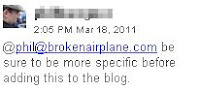 You are already able to insert "comments" into a document from the Insert menu (or by selecting Ctrl + Alt + M), now just add the person or person's you wish to notify that something has changed or needs changing. The way to do that is by typing the person's email address with an @ symbol in front of it. I have placed an example of how this might look on the right.

Note: This will only work on newly created documents (but you can always cut and paste into a new one).
 You are already able to insert "comments" into a document from the Insert menu (or by selecting Ctrl + Alt + M), now just add the person or person's you wish to notify that something has changed or needs changing. The way to do that is by typing the person's email address with an @ symbol in front of it. I have placed an example of how this might look on the right.
This will send an email to the person notifying them that changes have been/need to be made.

This will be tremendously helpful in moving classrooms away from needless paper waste while refining or groups creating a document collaboratively. Now you can leave comments on your student's work and they will be notified what they need to change in order to create beautiful work.
Original Source: Introducing Discussions into Google Docs
Subscribe to BrokenAirplane for great tutorials and educational news.
Google Search Now Integrates Your Social Network into the Results
On Monday, Google made a relatively big announcement about a new extension they are offering for the Chrome Browser. The extension allows you to block sites that were irrelevant or misleading to your search inquiry. After talking to some of my colleagues and friends about this extension, their opinions range from the "who cares" to the "this is scary".
The extension is part of a long term experiment which Google has been conducting regarding the integration of searching the web and your social circle. If Web 2.0 was the emergence of media and social networking, then Web 3.0 will be the merger between the information of the World Wide Web and the communities and people we have connected to.
One assumption which led to the original algorithm for the Google search engine were that the number of links into a site made it a more valuable content. This was logical considering that if more people are linking to your page then the more relevant your content must be. For the most part this worked, however many have exploited this principle to various degrees creating massive amounts of pages full of backlinks known as link farms. People purchase space on the site and are more likely to come up as a search result because of the massive amount of ranking they hold on Google.
There was a time when results from search engines was almost completely worthless and good websites spread via word of mouth. This has changed a lot in the last few years but there is still the frustration that comes from clicking on the top search result only to have it be unhelpful or worse, unrelated.
With this extension, Google is saying that they want their search results to be influenced by your world. Using the real world to influence the information you see is not completely new to Google. If you are searching in a certain geographical area for a store or food, Google will provide results near your location. Similarly, when you are searching for an Educational support and ideas, you should have results that reflect your community and situation rather than just what is highest viewed/ranked which might be irrelevant to you.
In the long term I see the link farms diminishing and stronger online communities of learning. Rather than one search result for all, younger students searching for answers about Newton's Second Law would see different results than a undergraduate Physics major. This makes the web more relevant and understandable. In my opinion it will also help us see where the gaps in content are and also how we can better serve different groups. Currently the sharing of resources is limited to P2P, I directly share a link with you via Facebook, Twitter, email, etc, but if the search engines start doing this for us, then I can benefit from those in the educational field without having to directly connect with you.
We are all connected but people want different things when they come to the Web, if our social connections influence what we see, it will become more tightly integrated into how we learn and live.
Subscribe to BrokenAirplane for the latest in Education Technology resources and news!
The extension is part of a long term experiment which Google has been conducting regarding the integration of searching the web and your social circle. If Web 2.0 was the emergence of media and social networking, then Web 3.0 will be the merger between the information of the World Wide Web and the communities and people we have connected to.
One assumption which led to the original algorithm for the Google search engine were that the number of links into a site made it a more valuable content. This was logical considering that if more people are linking to your page then the more relevant your content must be. For the most part this worked, however many have exploited this principle to various degrees creating massive amounts of pages full of backlinks known as link farms. People purchase space on the site and are more likely to come up as a search result because of the massive amount of ranking they hold on Google.
There was a time when results from search engines was almost completely worthless and good websites spread via word of mouth. This has changed a lot in the last few years but there is still the frustration that comes from clicking on the top search result only to have it be unhelpful or worse, unrelated.
With this extension, Google is saying that they want their search results to be influenced by your world. Using the real world to influence the information you see is not completely new to Google. If you are searching in a certain geographical area for a store or food, Google will provide results near your location. Similarly, when you are searching for an Educational support and ideas, you should have results that reflect your community and situation rather than just what is highest viewed/ranked which might be irrelevant to you.
In the long term I see the link farms diminishing and stronger online communities of learning. Rather than one search result for all, younger students searching for answers about Newton's Second Law would see different results than a undergraduate Physics major. This makes the web more relevant and understandable. In my opinion it will also help us see where the gaps in content are and also how we can better serve different groups. Currently the sharing of resources is limited to P2P, I directly share a link with you via Facebook, Twitter, email, etc, but if the search engines start doing this for us, then I can benefit from those in the educational field without having to directly connect with you.
We are all connected but people want different things when they come to the Web, if our social connections influence what we see, it will become more tightly integrated into how we learn and live.
Subscribe to BrokenAirplane for the latest in Education Technology resources and news!
Google Labs for Enhanced Gmail and Web
It was 2004 when Google first released Gmail and with it came the Beta tag. This sent a message to users that Gmail was safe but still in the testing phase. It was not until 2009 that the Beta went away but that didn't mean that Google was done tweaking and enhancing its product.
 Updates and new features are always coming out for Google products but you don't have to wait, you can try many of them out now using Google Labs. I wanted to share with you some of the Gmail enhancements I use from the Google Labs as well as some of the products they are working on that you can play with.
Gmail Labs
To activate the new features which allow you to improve and customize your experience, click on the green beaker (Erlenmeyer Flask, for my fellow science teachers) in the upper right hand corner of Gmail to the left of "Settings".
Now you can scroll down and see the various features you can activate. There is a disclaimer that some of
these are just being tested and they cannot promise how well they will work. However, you can be assured
that they do not affect the security nor functionality of Gmail (however, on a slow connection they could make
it take longer to sign in).
Some of the Gmail Labs I have turned on are (in alphabetical order):

Other Google Labs to Check Out
App Inventor - Now you can design your own Android apps from any computer. Just sign into this web based app designed and watch the tutorials.
Google Alerts - Set it up to notify you whenever something new is published about the search term (e.g. Android Update for my Phone)
Google Body - I showed this to one of our Biology/Anatomy teachers and she was ecstatic. Although there is stil a ways to go before this can replace your copy of Gray's Anatomy, it gives a great visual for students of all ages.
I love how Google uses the 80/20 rule to encourage its employees to pursue their interests. Many of our favorites like Gmail came from people following their passions and with this culture of experimentation, Google is bound to continue innovating amazing products.
Do you have a favorite lab or feature that we should enable/use? Leave a comment to tell us about it!
Subscribe to BrokenAirplane!
 Updates and new features are always coming out for Google products but you don't have to wait, you can try many of them out now using Google Labs. I wanted to share with you some of the Gmail enhancements I use from the Google Labs as well as some of the products they are working on that you can play with.
Gmail Labs
To activate the new features which allow you to improve and customize your experience, click on the green beaker (Erlenmeyer Flask, for my fellow science teachers) in the upper right hand corner of Gmail to the left of "Settings".
Now you can scroll down and see the various features you can activate. There is a disclaimer that some of
these are just being tested and they cannot promise how well they will work. However, you can be assured
that they do not affect the security nor functionality of Gmail (however, on a slow connection they could make
it take longer to sign in).
Some of the Gmail Labs I have turned on are (in alphabetical order):
- Apps Search - This allows you to search not only your email but your docs and sites as well, saving you time having to open them up separately. (Gmail Ninja)
- Background Send - If you are on a slow connection or uploading attachments, sending an email can take valuable time when you are trying to work through your Inbox. When you click send, it returns to your Inbox so you can keep working.
- Custom Keyboard Shortcuts - You should already be a fan of keyboard shortcuts for how much time they save you. The Gmail shortcuts are pretty handy but if you want to change what they are to suit your tastes, this lab is for you.
- Don't Forget Bob/Got the Wrong Bob - If you are sending an email out to a group of people and you typically also send it to "Bob" then Gmail will suggest adding contacts. Very helpful when you are sending something in a rush. The other lab will make sure you didn't mean to send it to Bob A. and not Bob Z.
- Google Docs Gadget - Allows you to view/open/create Google Docs from your Gmail. Another big time saver.
- Google Docs Preview in Mail - Check the document via computer or phone without having to open it in Docs.
- Inserting Images - This should definitely be a part of everyone's Gmail. From the family photos to the work presentations, having a picture directly in the email is much better than as an attachment.
- Message Translation - If you are working overseas, or your students have difficulty conveying their thoughts in your language then this is a must.
- Right Side Chat - The right side of Gmail is empty, so why scroll down to see your chats?
- Send and Archive - For all of my fellow ninjas out there, save even more time by combining the send and archive actions into one convenient button.
- Smart Mute - If you are not already using the Mute button then you are missing out. If you subscribe to a group that is talking about something you are no longer interested in, or if your co-workers keep pushing reply all then select the message, click the More Actions button and then Mute. This will prevent you from having that message pop up again. The Smart Mute enhancement just refines the Mute and makes it even less likely that you will receive that "+1" or "me too" over and over.
- SMS in Chat/SMS in Chat Gadget - I use this when I need to stay connected to parents, students, co-workers, and friends. It is not always opportune or convenient for you to send or receive text messages from your phone, but now you can do it through Gmail. Really helpful for those who can only be reached by text.
- Title Tweak - I often have my Gmail minimized and with this enabled the number of emails I have yet unread is displayed instead of Gmail - phil@....
- Undo Send - Hallelujah for this lab. I don't ever say stop reading my blog, but go and enable this now. I'll wait. Whether you forgot a recipient, attachment, or wished you hadn't responded so harshly, this provides you with up to 30 seconds in which to undo that email.
App Inventor - Now you can design your own Android apps from any computer. Just sign into this web based app designed and watch the tutorials.
Google Alerts - Set it up to notify you whenever something new is published about the search term (e.g. Android Update for my Phone)
Google Body - I showed this to one of our Biology/Anatomy teachers and she was ecstatic. Although there is stil a ways to go before this can replace your copy of Gray's Anatomy, it gives a great visual for students of all ages.
I love how Google uses the 80/20 rule to encourage its employees to pursue their interests. Many of our favorites like Gmail came from people following their passions and with this culture of experimentation, Google is bound to continue innovating amazing products.
Do you have a favorite lab or feature that we should enable/use? Leave a comment to tell us about it!
Subscribe to BrokenAirplane!
Why the Google Laptop Will Transform Our Culture
A few months ago, I applied for a Cr-48 Google Notebook both for myself and for my classroom. They asked me how I would use it and why I thought I was a good candidate. Then I waited, and waited, and watched a few in my Twitter PLN get one and write their thoughts on it. After a while, I completely forgot about it since there is no way to follow up on it.


Then this week, my wife told me I had received a package. I knew it couldn't be anything for our FRC Robot because everything is sent to the school. I opened it up and saw the playful packaging I had seen hundreds of times on Slashdot and Twitter. I received a Cr-48! I could offer my thoughts on it, but you can find the specs online as well as many great reviews about what is and isn't amazing about it. So I thought I would talk about it from an Educator's perspective.
My Dad is the quintessential early adopter. He used Betamax and Laserdisk to watch movies, wrote notes on his Apple Newton, and played games on an Intellivision. His house could have served as a museum of technology. Yet, I learned to never be an early adopter for hardware because:
1) The first iteration is never that great and there are a lot of bugs or few features.
2) The initial cost is insane but drops dramatically after a year or so.
It is these two points that make me excited not for the Cr-48 or its future versions, but for what will happen because of it. Look at the impact that Apple has had on the design of technology. Everything has a touchscreen now and user interfaces are easy and visually appealing to encourage wide adoption. With Google I expect there to be similar changes to our culture with the Cr-48. Keep in mind it is just a prototype, the Chrome OS has not even reached 1.0 so we are at the Alpha Stage. It should not be judged by what it is but what it could be. This is why it was sent out to us for testing.
The Cr-48 has no hard drive because it is expected that you can do much of your work in the cloud. This along with other features dramatically reduces the cost. The race is on to create a laptop in which one can be productive for $100 or less. We have smartphones but they are too small to effectively create, we have laptops but they run through batteries too quickly and their startup time takes too long.
Cr-48 has a 7-10 second boot and approximately an 8+ hour battery charge (with Wifi enabled)! This means that one could be on a transatlantic flight and be productive for almost the entire flight (but I would hope they would take a nap or read a book). Even closer to my heart, a student could carry it around and effectively use it in class, on the bus, and at home. Not that we should be on our laptops all day but the ability to have quick access is certainly appealing.
What I am most interested in is seeing how data providers are able to subsidize the laptops. It used to be that only the CEOs of the world were able to own a smartphones but now anyone can get them and there are many available for free if you are signing up for a new data contract. We have all seen how ubiquitous the iPhone, Blackberries, and Android phones are getting and a huge percentage of our students use one now. Imagine only a few years from now (probably less than 3) everyone having a laptop that can instantly turn on and start working.
Even in my school where we have a 2:1 ratio, the laptops take a few minutes to boot and can be slow so many have all but abandoned their use in the classroom. What would you do if everyone had a laptop in your classroom that was easy and quick to use all day? Would you tell them to put it away like we do with their phones or would you provide meaningful ways for them to use that powerful technology to learn and explore?
Why I love my Android OS Smartphone
 It is no secret that I love Google. Everything they make is so well integrated and well designed (ok Buzz and Wave had promise but oh well). I even helped test out Google Apps for our school and knew that it was going to be far more useful than Outlook for coordinating our meetings and working with our students.
So when the time came for a new phone, I knew I was going to go for an Android phone. I knew I would enjoy the email and calendar integration and maybe even a few apps but I had no idea how much I would enjoy it. When I first got my Android phone I was blown away by its potential. I kept remarking that this was the first phone that actually felt like a "smart phone" or a phone from the future.
Why I am writing this post, almost 2 years after I first got an Android phone? Well, our school provides our parent and students comments bi-annually. As fulfilling and enriching as this is for them, it is extremely time consuming to write 75 or so comments (especially when I have the FRC season underway).
A couple of semesters ago, I realized that I could write comments while I was sitting in a line bored or riding shotgun up to Los Angeles to visit family. This has significantly reduced the strain and stress of doing comments and has prevented me from having to experience the hours of last minute comment writing that my comments.
Yesterday, I was writing a comment and needed to check the student's grade. I was able to switch back and forth between the gradebook website and my Gmail where I was writing my comments. It struck me just how Android allows me to be powerfully mobile.
How else do I enjoy my Android phone? Many probably misunderstand us smart phone users and think we are just Facebooking or Tweeting all day long (and some may be). Yet, I have become much more productive and efficient since having my phone and it has allowed me to maintain this blog, keep my FRC team, communicate with students and parents.
Some of my favorite Android apps for Education and features are:
- Dropbox: Having a networked drive that is easily accessible from the net is invaluable to a teacher. I cannot express how much I love backups of my stuff and the Android app is so wonderful with the ability to read and view almost any file.
- Editing Google Docs: Really useful to be able to modify and collaborate on a document without being at a computer (Android 2.2 only)
- Gmail and Google Calendar is so wonderful on an Android phone. Some write things down to remember them, I write them down to forget. Whether it is an idea or an event, I put it into my phone so I can spend my time and effort thinking about other things and being creative. With the updated Gmail app it is even easier for me to do these things. As a project based learning educator, I am always thinking of new ways to help students understand and apply information, and with my phone, I just send myself a little quick email (even at 2am) and no need to fret and concern myself with it anymore.
- Rooting: Although I haven't yet done this for my Android 2.2 phone, rooting my HTC Hero made it much more enjoyable. The boost in speed was definitely worth it.
- Tasker: My favorite Android app (next to Dropbox). It has a learning curve, but the Tasker wiki has some great tutorials. It allows you to customize your phone to your life and have it turn off the ringer at a certain time of the day or at School (based on GPS). There are countless other options to suit every possible need. While I still strongly support Free and Open Source, this app is definitely worth its price.
- Versatility: The phone is basically open, which allows it to be used as my 8GB hard drive, mobile hotspot, robot remote control, and so much more.

For more apps, I suggest you check out the updated Best Android Apps for Educators and anyone else who wants to be incredibly productive.
The fact is that, I enjoy the ability to get information, make reservations at a restaurant, communicate with my PLN and friends, get directions, and so much more. If you can get an Android phone I highly recommend it. My family uses Sprint because of the unlimited Data plan but there are many great plans out there. Let me know if you have any questions or suggestions on how to use Android to be more productive.
Subscribe to BrokenAirplane!

Subscribe to BrokenAirplane!

Download and Search Books from Any Device through Google eBooks
The opportunities for learning have increased dramatically since the emergence of the Internet. The ability to share and help one another find resources and learn new information has removed many barriers for students who want to learn and develop their knowledge and skills.

Benjamin Franklin has always been one of my heroes (which is why my son is named after him). One of the most laudable and long reaching gifts he gave to this country was the US library system. How many of our lives have been enriched by a library? Yet, in much of our country access to high quality resources proves difficult for many in low income or rural areas. Thankfully, there are programs that allow libraries to share but it is time consuming and expensive.
Then Tim Berners-Lee dramatically cut down the barriers to learning when he opened up the World Wide Web to us all. Now information from all over the world was accessible through personal computers and while this can still represent a stumbling block, community resources are available so that almost all people can use the Internet, just maybe not as often as others.
Now as more and more people shift away from the traditional work/learning space and find themselves using phones and small devices, Steve Jobs and Jeff Bezos made learning mobile with the Apple iPods/iPhones and Kindle respectively which made it possible to read large amounts of information on mobile devices (I should mention that I don't solely attribute this to Jobs and Bezos but their leadership certainly drove the innovation that led to the new technologies).
With each passing day, more and more people are able to learn the new and widely diverse skills that make our society so unique. I hope more people take Google's lead and provide their technologies for as little as possible to provide equitable opportunities for all to learn.
Google eBooks
Subscribe to BrokenAirplane!
Google is again pushing the envelope for what should be public and free. Now everyone with a computer and Internet access has the ability to have Email, Document Collaboration, Websites, Translation/Phone, and soon even an Operating System. Our society has often needed to adjust to these changes and while Google has faced legal battles from their attempts to free books from restrictions, the time has come for Google to roll out its solution to book availability.
Announcing Google eBooks
Google eBooks is going to become one of your favorite websites. Now, you have access to search and read millions of books for research and preview. Through an agreement between Libraries, Publishers, and Google, you can now search the text of books to find relevant information for what you need. While this was available in part before, it has been greatly expanded to coincide with their ability to ready eBooks in the cloud.

Textbooks, magazines, and many other resources are available for search, viewing, and purchase. Through a new agreement you can now purchase digital versions of your media and then view them on your computer, eReader, and mobile device.
While the resources available are expansive, I am sure that even more will be available with time since Google has devoted a large amount of resources and time to this venture.
I am grateful to all who have worked hard to create exciting new ways and methods for learning.
Benjamin Franklin has always been one of my heroes (which is why my son is named after him). One of the most laudable and long reaching gifts he gave to this country was the US library system. How many of our lives have been enriched by a library? Yet, in much of our country access to high quality resources proves difficult for many in low income or rural areas. Thankfully, there are programs that allow libraries to share but it is time consuming and expensive.
Then Tim Berners-Lee dramatically cut down the barriers to learning when he opened up the World Wide Web to us all. Now information from all over the world was accessible through personal computers and while this can still represent a stumbling block, community resources are available so that almost all people can use the Internet, just maybe not as often as others.
Now as more and more people shift away from the traditional work/learning space and find themselves using phones and small devices, Steve Jobs and Jeff Bezos made learning mobile with the Apple iPods/iPhones and Kindle respectively which made it possible to read large amounts of information on mobile devices (I should mention that I don't solely attribute this to Jobs and Bezos but their leadership certainly drove the innovation that led to the new technologies).
With each passing day, more and more people are able to learn the new and widely diverse skills that make our society so unique. I hope more people take Google's lead and provide their technologies for as little as possible to provide equitable opportunities for all to learn.
Google eBooks
Subscribe to BrokenAirplane!
Search with Yolink and Find What You Are Looking For
The jobs of the future will require one not to know everything, but where to find everything. -Seymour Papert
 When you use a search engine like Google, Yahoo, or Bing, the results determine whether or not the information can be found on the page. This does not mean that the page is relevant to you, nor does it help you find the information within the page.
Yolink is a service which allows you to search and quickly find the information you are looking for so you can avoid the frustration that comes with Internet research. Save time and find results that are more relevant to what you are looking for.
Using the example on their website, if your students were looking on the EPA website for information regarding Greenhouse Gasses, they would quickly become overwhelmed. Even the website's own search bar returns confusing and irrelevant results to what your students are looking for.
But by using Yolink you and your students can use your research time more effectively. Here's how:
 After searching and finding this EPA page on Greenhouse Gases via Google, you can click on the Yolink browser extension or desktop application which you have installed.
 From the Yolink menu, choose either to scan the links or text on page and type in "greenhouse gases". After clicking Find, the results show up ordered by relevancy. Students can click on the section that seems most relevant to them and be taken directly to that part of the page or site.
I have read articles and comments from teachers frustrated that students are not reading but skimming while researching. I would contend that this is a necessary skill with the current search engines. However, if your students are using Yolink, they can spend their time reading, understanding, and applying the information.
An added bonus is that all results state who holds the Copyright or if it is Creative Commons so your students can be sure to use and cite it appropriately.
 Another bonus feature can be found by selecting the results you like and then clicking the "Google Docs" button. The results can be added to an existing or new Google Doc, saving even more time instead of cutting, pasting, and formatting back and forth.
The "share" button to the left of the Google Docs button allows for easy sharing via all the major social networking, blogging, and email services.
If you want to see Yolink in action, it is now integrated into the BrokenAirplane.com website. Search for popular topics like science, free software, python, humanities, and more! You will be able to find the result that works for you as well as preview it before clicking on the link. The time saved through all of the features will certainly speed up your browsing experience.
Ways to Get Started with Yolink:
When you use a search engine like Google, Yahoo, or Bing, the results determine whether or not the information can be found on the page. This does not mean that the page is relevant to you, nor does it help you find the information within the page.Yolink is a service which allows you to search and quickly find the information you are looking for so you can avoid the frustration that comes with Internet research. Save time and find results that are more relevant to what you are looking for.
Using the example on their website, if your students were looking on the EPA website for information regarding Greenhouse Gasses, they would quickly become overwhelmed. Even the website's own search bar returns confusing and irrelevant results to what your students are looking for.
But by using Yolink you and your students can use your research time more effectively. Here's how:
 After searching and finding this EPA page on Greenhouse Gases via Google, you can click on the Yolink browser extension or desktop application which you have installed.
 From the Yolink menu, choose either to scan the links or text on page and type in "greenhouse gases". After clicking Find, the results show up ordered by relevancy. Students can click on the section that seems most relevant to them and be taken directly to that part of the page or site.
I have read articles and comments from teachers frustrated that students are not reading but skimming while researching. I would contend that this is a necessary skill with the current search engines. However, if your students are using Yolink, they can spend their time reading, understanding, and applying the information.
An added bonus is that all results state who holds the Copyright or if it is Creative Commons so your students can be sure to use and cite it appropriately.

The "share" button to the left of the Google Docs button allows for easy sharing via all the major social networking, blogging, and email services.
If you want to see Yolink in action, it is now integrated into the BrokenAirplane.com website. Search for popular topics like science, free software, python, humanities, and more! You will be able to find the result that works for you as well as preview it before clicking on the link. The time saved through all of the features will certainly speed up your browsing experience.
Ways to Get Started with Yolink:
- Install the free browser extension or desktop application and use it directly.
- If you are unable to install the software, then use Sweetsearch.com. This website is powered by Yolink and will give you a similar time saving experience as if you were using Yolink.
- There are great video tutorials on Yolink, lessons to help your students research more efficiently and effectively.
Enjoy, and I hope this free service frees up your students to do more creative and analytical tasks so they can use the new information they have found.
Subscribe to BrokenAirplane!
Subscribe to BrokenAirplane!
How to Learn Anything - Lessons in Neuroscience from My Dad
In a previous post, I reflected on some life lessons I believe have made me what who I am today. The list is pretty popular and some have asked me to specifically elaborate on my Dad's advice to my Mom. You see, my Mom was told by everyone else that it was a waste of her time to seek to be something other than a secretary.
My Dad meanwhile had grown up in a small town in Missouri, far far away from the glitz and glamor of Hollywood. He was raised to follow his dreams no matter how difficult they might seem. One day he saw Cecil B. DeMille’s “The Greatest Show On Earth”. From that moment on, he knew he wanted to make movies. How could a Midwestern boy hope to learn all of the skills and talent to be a Cinematographer? I'll let him tell you:
When I (my Dad) was in junior high school I started reading photography books. They were all technically over my head. I was very depressed. I had been told that I didn't have the aptitude for math and science. I feared that if I couldn't learn the essentials of Cinematography I would never have a chance. One night I decided to force read the text, hoping that by glossing over the terms and concepts I didn't understand someday I would recollect the information when I had a deeper ability to interpret. Even though I glossed over the ideas I was able to connect the dots and put it all together. I used that tool for everything I didn't understand.
Later on he left Missouri for Los Angeles and began his journey towards becoming a Director of Photography. While working as a projectionist he met my Mom and while dating, she talked about her interest in science and nursing which had been inspired by Isaac Asimov books like Fantastic Voyage. Quoting my Dad again:
When your mother was having trouble I just told her what I did. She was very frustrated in the beginning. I insisted she read her textbooks before she even went to class. That way she would have a recollection of complex phrases and ideas when the teacher introduced them. For her she had already read the material which helped her to overcome her initial fear.
This same advice was passed onto me and my brother. Whenever I would get my textbooks before school started, I would always flip through them and skim the information. My brother and I would always go to the bookstore or library to learn something new. He has taught himself to read and compose music via this method, and I have learned almost all that I know simply by reading books and materials that I didn't at first understand.
I later discovered that Richard Feynman followed a similar method which he humorously retells in "Surely You're Joking"
When Feynman was a graduate student at Princeton, he was allowed to sit in a biology course if he agreed to do the assignments. One involved giving a report on research that had been done on cats. He was unfamiliar with the names of the muscles mentioned, so he went down to the library to get “a map of the cat.” Then he gave his report, beginning with an explanation of the cat’s anatomy. The biology students immediately stopped him, saying they already knew all that. “Oh,” he replied, “you do? Then no wonder I can catch up with you so fast after you’ve had four years of biology.” As he wrote, “They had spent all their time memorizing stuff like that, when it could be looked up in fifteen minutes.”
It is frustrating and confusing at first, but everything eventually clicks. The trick is to not stop until you find the answer. It is far easier to do that now with Google, Wikipedia, or YouTube and I love being able to take control of my learning and not have to pay or wait for others to teach me.
In case you think my family is unique somehow in being able to do this, it is simply not true. Motivation + Resources is all that is necessary.
Tech Support:
If you want to learn any new technology there are three pieces of advice I would give you.
1) Think like a computer (or at least a programmer): The way we use technology was developed a long time ago by a few individuals and organizations. I am talking about file folders, windows, mice, and all that we take for granted. It could have been developed many different ways but this is the system we have. Jaron Lanier does a great job of talking about this system in his book You Are Not a Gadget.
If you can train yourself to think like a computer programmer or a computer itself, then you can figure out anything. Can't find the command you want? Look around and ask yourself what possible places it could be. This takes practice but can be done and leads me to my next piece of advice.
2) Play with the technology: Explore it, try things out. If you are using working with software you can almost always hit the undo button. My Mom was always calling me for help over the phone, but one day her tech support calls stopped coming. I eventually called and asked her, are you having any technical issues? She said yes, but she had figured them out herself!
The turning point for her was, "realizing that I could experiment and try things without breaking the computer". Now her and I talk all the time about cool things she is discovering in technology. All because she decided to be adventurous.
Keep in mind you will make mistakes so save anything important.
3) GIYF: This acronym is not mine but I think of it when people send me a question, and then 10 seconds later I send them the exact answer back. They are amazed! How could I know the answer to so many questions? Quite simply...I don't. Google Is Your Friend is a Internet slogan stating, if you don't know the answer, see if someone online has already asked and received the answer.
Another famous Internet acronym is GIGO. Which stands for Garbage In Garbage Out. If you don't search correctly, you will not get the answer you want. It might be out there but called something else. I always liken this to how telephone books still use the term Apparel instead of Clothes. Here are Google's suggestions on how to effectively search, and if you get the hang of those try these powerful search tricks.
Have you tried these ideas or something similar to learn something new? Post a comment and share it with us. What do you do to solve your technology issues?
Subscribe to BrokenAirplane!
My Dad meanwhile had grown up in a small town in Missouri, far far away from the glitz and glamor of Hollywood. He was raised to follow his dreams no matter how difficult they might seem. One day he saw Cecil B. DeMille’s “The Greatest Show On Earth”. From that moment on, he knew he wanted to make movies. How could a Midwestern boy hope to learn all of the skills and talent to be a Cinematographer? I'll let him tell you:
When I (my Dad) was in junior high school I started reading photography books. They were all technically over my head. I was very depressed. I had been told that I didn't have the aptitude for math and science. I feared that if I couldn't learn the essentials of Cinematography I would never have a chance. One night I decided to force read the text, hoping that by glossing over the terms and concepts I didn't understand someday I would recollect the information when I had a deeper ability to interpret. Even though I glossed over the ideas I was able to connect the dots and put it all together. I used that tool for everything I didn't understand.
Later on he left Missouri for Los Angeles and began his journey towards becoming a Director of Photography. While working as a projectionist he met my Mom and while dating, she talked about her interest in science and nursing which had been inspired by Isaac Asimov books like Fantastic Voyage. Quoting my Dad again:
When your mother was having trouble I just told her what I did. She was very frustrated in the beginning. I insisted she read her textbooks before she even went to class. That way she would have a recollection of complex phrases and ideas when the teacher introduced them. For her she had already read the material which helped her to overcome her initial fear.
This same advice was passed onto me and my brother. Whenever I would get my textbooks before school started, I would always flip through them and skim the information. My brother and I would always go to the bookstore or library to learn something new. He has taught himself to read and compose music via this method, and I have learned almost all that I know simply by reading books and materials that I didn't at first understand.
I later discovered that Richard Feynman followed a similar method which he humorously retells in "Surely You're Joking"
When Feynman was a graduate student at Princeton, he was allowed to sit in a biology course if he agreed to do the assignments. One involved giving a report on research that had been done on cats. He was unfamiliar with the names of the muscles mentioned, so he went down to the library to get “a map of the cat.” Then he gave his report, beginning with an explanation of the cat’s anatomy. The biology students immediately stopped him, saying they already knew all that. “Oh,” he replied, “you do? Then no wonder I can catch up with you so fast after you’ve had four years of biology.” As he wrote, “They had spent all their time memorizing stuff like that, when it could be looked up in fifteen minutes.”
It is frustrating and confusing at first, but everything eventually clicks. The trick is to not stop until you find the answer. It is far easier to do that now with Google, Wikipedia, or YouTube and I love being able to take control of my learning and not have to pay or wait for others to teach me.
In case you think my family is unique somehow in being able to do this, it is simply not true. Motivation + Resources is all that is necessary.
Tech Support:
If you want to learn any new technology there are three pieces of advice I would give you.
1) Think like a computer (or at least a programmer): The way we use technology was developed a long time ago by a few individuals and organizations. I am talking about file folders, windows, mice, and all that we take for granted. It could have been developed many different ways but this is the system we have. Jaron Lanier does a great job of talking about this system in his book You Are Not a Gadget.
If you can train yourself to think like a computer programmer or a computer itself, then you can figure out anything. Can't find the command you want? Look around and ask yourself what possible places it could be. This takes practice but can be done and leads me to my next piece of advice.
2) Play with the technology: Explore it, try things out. If you are using working with software you can almost always hit the undo button. My Mom was always calling me for help over the phone, but one day her tech support calls stopped coming. I eventually called and asked her, are you having any technical issues? She said yes, but she had figured them out herself!
The turning point for her was, "realizing that I could experiment and try things without breaking the computer". Now her and I talk all the time about cool things she is discovering in technology. All because she decided to be adventurous.
Keep in mind you will make mistakes so save anything important.
3) GIYF: This acronym is not mine but I think of it when people send me a question, and then 10 seconds later I send them the exact answer back. They are amazed! How could I know the answer to so many questions? Quite simply...I don't. Google Is Your Friend is a Internet slogan stating, if you don't know the answer, see if someone online has already asked and received the answer.
Another famous Internet acronym is GIGO. Which stands for Garbage In Garbage Out. If you don't search correctly, you will not get the answer you want. It might be out there but called something else. I always liken this to how telephone books still use the term Apparel instead of Clothes. Here are Google's suggestions on how to effectively search, and if you get the hang of those try these powerful search tricks.
Have you tried these ideas or something similar to learn something new? Post a comment and share it with us. What do you do to solve your technology issues?
Subscribe to BrokenAirplane!
Android Apps You Will Love
My previous school used Google Apps for education and I was drawn to the idea of having my phone fully integrated with my email, calendar, docs, etc. I love my Android phone, even though it is a couple of years old, I still feel like I am holding a Tricorder. It is the first phone I have ever felt truly connected me to the world and did it well.
Since my Free and Open Source Software Suggestions is still one of the most looked at pages on BrokenAirplane, I figured a list of suggestions about my favorite Android apps for life, education, and otherwise might be helpful as well. These are certainly not exhaustive, just the ones I use frequently.
Unless otherwise mentioned, these applications are all free. Now that the Google Play allows you to install directly to your phone, I have replaced the links so you can conveniently send them with one click.
- Adobe Reader - Read PDFs on your phone.
- AndroZip - Useful for opening attachments you download.
- Astro - Browse the files on your phone, but it is best known for its ability to backup the applications on your phone.
- Barcode Scanner - Scan barcodes and QR codes for quickly accessing information (make your own QR business card here and here)
- CardioGraph - Fantastic use of the camera to check your pulse.
- Chrome - Sign in and keep all of your bookmarks and tabs available across alldevices.
- Google Play Books - With Google's Play Bookstore, you can read on all of your devices.
- Google Reader - This app seamlessly allows you to keep track of all of your blogs and RSS feeds. The interface is smooth and the sync works really well. Unlike some rss feed apps, you can do almost everything you can do on the computer Google Reader site (e.g. subscribe, search, follow from multiple accounts).
- Google Sky Map - GPS and accelerometer equipped sky map. As you move your phone the map moves with you. If you use this every day or only a couple times a year it is still one of my favorite apps.
- Google Translate - The power of this app was demonstrated to me when my students and I were able to communicate with other Robotics teams from around the World at Championships. Very powerful features like multiple languages and it will speak the translation as well.
- GTasks - Google Tasks in Gmail is my todo list for getting things done. The app synchronizes so you don't have to go to a site.
- HandyCalc - Powerful calculator with graphing and currency conversion.
- NPR News - Useful for streaming the news and your favorite weekend shows.
- Physics Gizmo - Now you and your students can do science without the cost of those expensive sensors. Blog post here.
- PRemoteDroid - Allows you to remotely connect and control your computer. Use as a mouse, browse files. Really useful when you are teaching or away from your computer. Similar to Gmote but allows you to use Bluetooth as well. Download the software for your PC here.
- Reddit Sync - Great interface and it's easy to open up the images/links/videos right from within the app.
- Seesmic - Love this Twitter app! I can quickly and easily post to Twitter and my Facebook page. I tried other apps and they were either slower or had less features. It has a lot of customizations for the look, frequency of updates, lists, and everything else you need in a Twitter app to connect to your PLN.
- Shopper - Find out if you are really getting the best deal by scanning the object or barcode. The app will then tell you what Amazon, Ebay, Best Buy, etc are selling it for. I use this app for comparison shopping and I use the share function to remind my self of books I want to buy or take out from the library.
- SL4A - This was the app I used to originally create Physics Gizmo. Great prototyping platform.
- Smart Tools - (Free versions of each tool/Paid version puts them all in one app) uses your phones sensors to measure distance, height, angle, etc. Very handy.
- WebMD - Simple interface, either click on where your symptoms are, check drug interactions, and more. Great for parents.
Subscribe to:
Posts
(
Atom
)