Showing posts with label google apps. Show all posts

Google Labs for Enhanced Gmail and Web

It was 2004 when Google first released Gmail and with it came the Beta tag. This sent a message to users that Gmail was safe but still in the testing phase. It was not until 2009 that the Beta went away but that didn't mean that Google was done tweaking and enhancing its product.


Updates and new features are always coming out for Google products but you don't have to wait, you can try many of them out now using Google Labs. I wanted to share with you some of the Gmail enhancements I use from the Google Labs as well as some of the products they are working on that you can play with.


Gmail Labs
To activate the new features which allow you to improve and customize your experience, click on the green beaker (Erlenmeyer Flask, for my fellow science teachers) in the upper right hand corner of Gmail to the left of "Settings".


Now you can scroll down and see the various features you can activate. There is a disclaimer that some of
these are just being tested and they cannot promise how well they will work. However, you can be assured
that they do not affect the security nor functionality of Gmail (however, on a slow connection they could make
it take longer to sign in).


Some of the Gmail Labs I have turned on are (in alphabetical order):


  • Apps Search - This allows you to search not only your email but your docs and sites as well, saving you time having to open them up separately. (Gmail Ninja)
  • Background Send - If you are on a slow connection or uploading attachments, sending an email can take valuable time when you are trying to work through your Inbox. When you click send, it returns to your Inbox so you can keep working.
  • Custom Keyboard Shortcuts - You should already be a fan of keyboard shortcuts for how much time they save you. The Gmail shortcuts are pretty handy but if you want to change what they are to suit your tastes, this lab is for you.
  • Don't Forget Bob/Got the Wrong Bob - If you are sending an email out to a group of people and you typically also send it to "Bob" then Gmail will suggest adding contacts. Very helpful when you are sending something in a rush. The other lab will make sure you didn't mean to send it to Bob A. and not Bob Z.
  • Google Docs Gadget - Allows you to view/open/create Google Docs from your Gmail. Another big time saver.
  • Google Docs Preview in Mail - Check the document via computer or phone without having to open it in Docs.
  • Inserting Images - This should definitely be a part of everyone's Gmail. From the family photos to the work presentations, having a picture directly in the email is much better than as an attachment.
  • Message Translation - If you are working overseas, or your students have difficulty conveying their thoughts in your language then this is a must.
  • Right Side Chat - The right side of Gmail is empty, so why scroll down to see your chats?
  • Send and Archive - For all of my fellow ninjas out there, save even more time by combining the send and archive actions into one convenient button.
  • Smart Mute - If you are not already using the Mute  button then you are missing out. If you subscribe to a group that is talking about something you are no longer interested in, or if your co-workers keep pushing reply all then select the message, click the More Actions button and then Mute. This will prevent you from having that message pop up again. The Smart Mute enhancement just refines the Mute and makes it even less likely that you will receive that "+1" or "me too" over and over.
  • SMS in Chat/SMS in Chat Gadget - I use this when I need to stay connected to parents, students, co-workers, and friends. It is not always opportune or convenient for you to send or receive text messages from your phone, but now you can do it through Gmail. Really helpful for those who can only be reached by text.
  • Title Tweak - I often have my Gmail minimized and with this enabled the number of emails I have yet unread is displayed instead of Gmail - phil@....

  • Undo Send - Hallelujah for this lab. I don't ever say stop reading my blog, but go and enable this now. I'll wait. Whether you forgot a recipient, attachment, or wished you hadn't responded so harshly, this provides you with up to 30 seconds in which to undo that email.

Other Google Labs to Check Out
App Inventor - Now you can design your own Android apps from any computer. Just sign into this web based app designed and watch the tutorials.


Google Alerts - Set it up to notify you whenever something new is published about the search term (e.g. Android Update for my Phone)


Google Body - I showed this to one of our Biology/Anatomy teachers and she was ecstatic. Although there is stil a ways to go before this can replace your copy of Gray's Anatomy, it gives a great visual for students of all ages.


I love how Google uses the 80/20 rule to encourage its employees to pursue their interests. Many of our favorites like Gmail came from people following their passions and with this culture of experimentation, Google is bound to continue innovating amazing products.


Do you have a favorite lab or feature that we should enable/use? Leave a comment to tell us about it!


Subscribe to BrokenAirplane!

Living in the Cloud

So having had my Cr-48 Laptop for a week and seeing what it is like to live completely without a hard drive, I must say I had no idea how much I rely upon software. Even though I save almost no data to my hard drive, I still am unable to live fully in the cloud.

That is fine with me, as Chrome OS has not even reached version 1.0 and it has a long way to go, yet it is ironic that living completely in the cloud had the same feeling as roughing it in the mountains. There are so many creature comforts that are just not yet there yet, but it wasn't too long ago that I was educating people about the surge in Open Source technology so I have great expectations for its potential.

In this post I wanted to share the great cloud/web apps that are out there now and also what I would need to see emerge to feel completely free to soar among the eagles.

First in 100 words or less, what is the cloud and why would I want to "live in it"? The cloud is the term given to the applications and network storage that work together so you can sync up your data online. This allows you to work from any computer (Apple/PC/Linux, Home/Work/In-Laws, etc). It also affords you the assurance that even if your computer is lost or broken, your data can be recovered.

As always out of respect to your time and pocket, I will recommend only that which is free or worth the cost and tested by me.

It would be impossible to have a cloud computing post without including the giant that made it popular. Google has provided so many different ways to work online and all of them are free.

Google Apps
Books (Store), Blogs, Chrome, Gmail, Calendar, Documents, Photos, Sites

Aviary
Bundled into Gapps or you can run them separately is the Aviary suite. In it you will find:

  • Image Editing
  • Screen Capturing
  • Vector Editor (think Illustrator/Inkscape)
  • Visual Effects Editor (very cool, lots of amazing potential)
  • Music Creator (ability to create beats and tracks)
  • Audio Editor (an online Audacity with a built in library of samples from Quantum Tracks)
  • Image Markup
  • Color Editor
The Aviary applications are amazing and some are even better than their desktop counterparts. If you have a creative bone in your body, you should definitely give them a try.

This is the cleanest, simplest, best way to sync your files. Simply install the software on any and every computer you want to synchronize and then simply drag and drop your files into the Dropbox folder and it is automatically backed up. Then you can access your files from any of the computers, online, or even from your phone.

I don't personally use this app but I know many others who I respect that love it. Evernote allows you to capture files, images, text, and more then share it and store it.

The cloud applications are getting better and better but I am still unwilling to leave my software. As more and more developers start moving familiar features into the cloud then the age of the Personal Computer is going to draw to a close and it will become more and more about having a constant Internet Connection.

My wish list for the cloud:
  • To be able to sync settings (display, sound, hotkeys, etc). Google Chrome lets you sync quite a bit right now but everytime I am on another computer I am never as productive as when things are just right on my fine tuned computer.
  • A great screencaster. I currently use CamStudio and as more and more people are creating video tutorials, the need for this is going to increase.
  • A better way to connect the files on my computer to the ones on my phone. I still feel like there are two worlds, the mobile one and the desktop one. Merge those two please.
Far from complaining, I love the technology I have and am old enough to remember how far we have come from code on floppy disks/punch cards. With everyday I feel empowered to do more and more and the opportunities my students are able to explore and achieve are mind boggling. What will the technology world look like in 1 year? 5 years? 20 years? 100 years!?

Do you have any "cloud" tech that keeps your data safe and allows you to be productive everywhere? Share it with us in the comments.

Subscribe to BrokenAirplane!

Why I love my Android OS Smartphone

It is no secret that I love Google. Everything they make is so well integrated and well designed (ok Buzz and Wave had promise but oh well). I even helped test out Google Apps for our school and knew that it was going to be far more useful than Outlook for coordinating our meetings and working with our students.

So when the time came for a new phone, I knew I was going to go for an Android phone. I knew I would enjoy the email and calendar integration and maybe even a few apps but I had no idea how much I would enjoy it. When I first got my Android phone I was blown away by its potential. I kept remarking that this was the first phone that actually felt like a "smart phone" or a phone from the future.

Why I am writing this post, almost 2 years after I first got an Android phone? Well, our school provides our parent and students comments bi-annually. As fulfilling and enriching as this is for them, it is extremely time consuming to write 75 or so comments (especially when I have the FRC season underway). 

A couple of semesters ago, I realized that I could write comments while I was sitting in a line bored or riding shotgun up to Los Angeles to visit family. This has significantly reduced the strain and stress of doing comments and has prevented me from having to experience the hours of last minute comment writing that my comments.

Yesterday, I was writing a comment and needed to check the student's grade. I was able to switch back and forth between the gradebook website and my Gmail where I was writing my comments. It struck me just how Android allows me to be powerfully mobile.

How else do I enjoy my Android phone? Many probably misunderstand us smart phone users and think we are just Facebooking or Tweeting all day long (and some may be). Yet, I have become much more productive and efficient since having my phone and it has allowed me to maintain this blog, keep my FRC team, communicate with students and parents. 

Some of my favorite Android apps for Education and features are:
  • Dropbox: Having a networked drive that is easily accessible from the net is invaluable to a teacher. I cannot express how much I love backups of my stuff and the Android app is so wonderful with the ability to read and view almost any file.
  • Editing Google Docs: Really useful to be able to modify and collaborate on a document without being at a computer (Android 2.2 only)
  • Gmail and Google Calendar is so wonderful on an Android phone. Some write things down to remember them, I write them down to forget. Whether it is an idea or an event, I put it into my phone so I can spend my time and effort thinking about other things and being creative. With the updated Gmail app it is even easier for me to do these things. As a project based learning educator, I am always thinking of new ways to help students understand and apply information, and with my phone, I just send myself a little quick email (even at 2am) and no need to fret and concern myself with it anymore.
  • Rooting: Although I haven't yet done this for my Android 2.2 phone, rooting my HTC Hero made it much more enjoyable. The boost in speed was definitely worth it.
  • Tasker: My favorite Android app (next to Dropbox). It has a learning curve, but the Tasker wiki has some great tutorials. It allows you to customize your phone to your life and have it turn off the ringer at a certain time of the day or at School (based on GPS). There are countless other options to suit every possible need. While I still strongly support Free and Open Source, this app is definitely worth its price.
  • Versatility: The phone is basically open, which allows it to be used as my 8GB hard drive, mobile hotspot, robot remote control, and so much more.
For more apps, I suggest you check out the updated Best Android Apps for Educators and anyone else who wants to be incredibly productive.

While some might think that constant communication and access to information would be overwhelming and a drain on time, I have actually found the reverse. Of course out of the box, the phone has all of these notifications and reminders but I suggest you turn these off to suit your life. 

The fact is that, I enjoy the ability to get information, make reservations at a restaurant, communicate with my PLN and friends, get directions, and so much more. If you can get an Android phone I highly recommend it. My family uses Sprint because of the unlimited Data plan but there are many great plans out there. Let me know if you have any questions or suggestions on how to use Android to be more productive.

Subscribe to BrokenAirplane!

Android Apps You Will Love

My previous school used Google Apps for education and I was drawn to the idea of having my phone fully integrated with my email, calendar, docs, etc. I love my Android phone, even though it is a couple of years old, I still feel like I am holding a Tricorder. It is the first phone I have ever felt truly connected me to the world and did it well.

Since my Free and Open Source Software Suggestions is still one of the most looked at pages on BrokenAirplane, I figured a list of suggestions about my favorite Android apps for life, education, and otherwise might be helpful as well. These are certainly not exhaustive, just the ones I use frequently. 

Unless otherwise mentioned, these applications are all free. Now that the Google Play allows you to install directly to your phone, I have replaced the links so you can conveniently send them with one click.
  • Adobe Reader - Read PDFs on your phone.
  • AndroZip - Useful for opening attachments you download.
  • Astro - Browse the files on your phone, but it is best known for its ability to backup the applications on your phone.
  • Barcode Scanner - Scan barcodes and QR codes for quickly accessing information  (make your own QR business card here and here)
  • CardioGraph - Fantastic use of the camera to check your pulse.
  • Chrome - Sign in and keep all of your bookmarks and tabs available across alldevices.
  • Google Play Books - With Google's Play Bookstore, you can read on all of your devices.
  • Google Reader - This app seamlessly allows you to keep track of all of your blogs and RSS feeds. The interface is smooth and the sync works really well. Unlike some rss feed apps, you can do almost everything you can do on the computer Google Reader site (e.g. subscribe, search, follow from multiple accounts).
  • Google Sky Map - GPS and accelerometer equipped sky map. As you move your phone the map moves with you. If you use this every day or only a couple times a year it is still one of my favorite apps.
  • Google Translate - The power of this app was demonstrated to me when my students and I were able to communicate with other Robotics teams from around the World at Championships. Very powerful features like multiple languages and it will speak the translation as well.
  • GTasks - Google Tasks in Gmail is my todo list for getting things done. The app synchronizes so you don't have to go to a site.
  • HandyCalc - Powerful calculator with graphing and currency conversion.
  • NPR News - Useful for streaming the news and your favorite weekend shows.
  • Physics Gizmo - Now you and your students can do science without the cost of those expensive sensors. Blog post here.
  • PRemoteDroid - Allows you to remotely connect and control your computer. Use as a mouse, browse files. Really useful when you are teaching or away from your computer. Similar to Gmote but allows you to use Bluetooth as well. Download the software for your PC here.
  • Reddit Sync - Great interface and it's easy to open up the images/links/videos right from within the app. 
  • Seesmic - Love this Twitter app! I can quickly and easily post to Twitter and my Facebook page. I tried other apps and they were either slower or had less features. It has a lot of customizations for the look, frequency of updates, lists, and everything else you need in a Twitter app to connect to your PLN.
  • Shopper - Find out if you are really getting the best deal by scanning the object or barcode. The app will then tell you what Amazon, Ebay, Best Buy, etc are selling it for. I use this app for comparison shopping and I use the share function to remind my self of books I want to buy or take out from the library.
  • SL4A - This was the app I used to originally create Physics Gizmo. Great prototyping platform.
  • Smart Tools - (Free versions of each tool/Paid version puts them all in one app) uses your phones sensors to measure distance, height, angle, etc. Very handy.
  • WebMD - Simple interface, either click on where your symptoms are, check drug interactions, and more. Great for parents.
There are a ton more apps that I could have on my phone that I don't because I am trying to simplify my life and minimize distraction. What Android App can you not live without? Leave the link and description in the comments.

Gmail Priority Inbox - Enable to See Your Most Important Emails First

You may be aware of the fact that 80-95% of all email sent each day is SPAM. SPAM is email that is junk to you and most everyone else (e.g. advertisements, unsolicited emails, etc). If you have Gmail, it is very effective at filtering out your SPAM and keeping you from ever seeing it.

Another email anomaly that we have all experienced is Bacn (pronounced Bacon). Bacn is email that you have asked for or from people you know but is not immediately important. There are plenty of blogs and newsletters that I have subscribed to but do not necessarily want cluttering up my email and preventing me from seeing that which is most important at that moment. Or you may want to ensure that certain people or emails get shunted to the top when you receive them (e.g. meeting changes, your boss, etc).

Gmail has recently introduced Priority Inbox to help out with this. It rolled out in part last week but by now everyone should have access to it. I encourage everyone to try it out and see if you like it. For my fellow Gmail Ninjas with very few emails in your Inbox, this may not be necessary for you. However, if you receive an overwhelming number of emails each day/week, this may be your favorite tool. 

You can activate it with the follwing: Click on Settings in the upper right. From the options at the top, select Priority Inbox, at the bottom select Show Priority Inbox, finally click Save Changes.

Now you should see your email divided up into 3 sections: Important and Unread, Starred, and Everything else. While this might be perfect for most of us, you may wish to go into the Priority Inbox settings again and customize it for yourself.

If you click on Add Section next to #3 (the empty one) you could also add the "Unread" filter for your email (which I have), and if you click on More Options you could select a filter as well.

If you click on Options next to the other Priority Inbox Settings you can change how many emails could appear in each section, the option to hide the section when empty (which I selected to keep things orderly), and the option to remove the section.

If you have set up filters for yourself, you can also select further on down whether or not Priority Inbox overrides this (the majority of you will not wish to override them unless Priority Inbox makes your filters redundant).

Click Save Changes and you will be taken back to your Inbox however it has now been split according to the sections you set up.

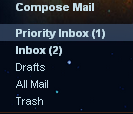
Priority Inbox refers to your unread and "important" emails whereas the Inbox indicator below it tells you how many total unread emails you have. You may look at your "important" emails and disagree with this qualification. This is because you have to train Priority Inbox to fit your needs.

The way emails are determined to be "important" or not is the frequency in which you send or receive an email from that person. However, this could be misleading if you have a newsletter that your receive everyday or a coworker that you email about your fantasy football team. 

In order to train Priority Inbox you select an email you think is important but is not considered important and click the yellow plus sign. If there is an email considered important but you do not consider important then select that email and click the gray minus button.


If you have selected it in the settings, you also have the option of starring an email and having it land in a separate spot. 

While this may actually seem like it will take more time out of your busy schedule, remember the words of Benjamin Franklin, "An ounce of prevention is worth a pound of cure." Taking the short amount of time to train Gmail which emails are important to you will ensure that you are always looking at what is most important. 

For those of you with a large number of emails your previous way of reading email was:
Hmm, I have a lot of emails, lets see which one is useful....no...no...no...and so on. 
The result? Wasted time and effort.

With Gmail Priority Inbox:
Hmm, I have a lot of emails,
-First I'll read my Important and unread Emails
-Next I will read my unread emails (BACN) at my leisure.
The Result? Know that your most important emails are taken care of and then handle the other emails.

Disclaimer: Priority Inbox rolled out just a week ago and while it is in Beta and works well, it is not infallible. Until you are confident in how you have trained it, skim your other emails to ensure you didn't miss anything.

If you have any questions or comments leave a comment. I hope that this provides help to those of you who need it. Until next time!


Links:
GSites - Websites
GForms - Data Collection and Surveys

Google Forms for Online, Easy, and Free Data Collection

In this world, data is king. Being able to gather and manipulate data is incredibly important. Keeping track of student information, conducting experiments in science class, administrative tasks, and all of the other instances where data streams through our lives.

The problem has been that data collection and analyzing has previously been expensive or tedious to do. Once again, Google has brought equity to the situation with Google Forms. Built into Google Docs, this form allows you to gather and understand data easily and from any computer with Internet.

How to use Google Forms:
1) Open Google Docs, click Create New, and select Form.
2) Title your Form and enter in any additional instructions you would like (e.g. make sure to answer in inches or all answers must be in complete sentences).
3) Now it is time to create questions for those who you send out the form to. Add a name and question text (e.g. true or false, coordinate points should be written as (x,y). You have 7 choices for question types:
  • Text: Short, one sentence responses
  • Paragraph Text: Longer responses
  • Multiple Choice
  • Checkboxes: Like multiple choice with options but more than one option can be selected.
  • Choose from a List: Like multiple choice but with a dropdown menu.
  • Scale: Set an upper bound and lower bound and submitters can provide a response in that range (e.g. describe your happiness on a scale from 1-5).
  • Grid: Like scale but with the ability to have more than one row or column.
4) Before clicking done, check the box if you would like to make sure that the question is answered before it can be submitted. 

5) After completing a question and clicking done, you have three options. 
  • Pencil: Edit the question again.
  • Boxes: Duplicate this question (so you can have it asked again or modify slightly.
  • Trash: Delete the question.


6) From there you can click the Add This button and add more questions or page breaks.
7) Change the theme if you would like.
8) If you are using Google Apps you can have the Form automatically collect the submitters' name (by clicking the checkbox near the top of the form), and if you are using a personal Gmail account I would recommend adding a question which asks their name. This will prevent duplicate submissions and assist with accountability.
8) Now to send out the form to those who need it:
  • Click Email this Form to send the form out via email. You have the option to embed the form into the email.
  • Click More Actions to embed the form in your website or blog.
9) All of your data will be collected in a Google Spreadsheet. To see the data, you can either go to the main Google Docs or click on See Responses and then Spreadsheet.
10) From the spreadsheet you can click Insert and Chart if you would like to see it graphed. Or click Tools and Sort to order it in a particular way.

Suggestions for using Google Forms:
  • Collecting Data: 
    • I have seen teachers use a Google Form to collect data from a project. For example, students could use phones to submit their information for class averages and analysis.
    • Our school has a policy against MP3 players in the class, I collect data from the students about a Google Form about a band that relaxes them and one that energizes them and input this information into Pandora. I then have music to play in the class when students are working.
  • Polling: 
    • Last year our ASB made the switch from collecting and tabulating results from their elections from paper to Google Forms. The difference was that results were released in hours as opposed to a day and much less headache.
  • More great examples can be found here.
I hope you benefit as greatly as I have from this technology. If you have any questions or suggestions leave it in the comments.


Links:
GSites - Websites
GForms - Data Collection and Surveys

Google Apps Tutorial Part 4 Google Calendar

As teachers we have so many demands on our time and it is difficult to keep up with them all. Additionally, students are extremely busy in this day and age with multiple classes, after school programs, homework/projects due, etc. Once again Google Apps comes to the rescue with Google Calendar.

First if you are migrating from your district's system or an older online calendar, GCal will let you import pretty much any thing so you don't have to skip a beat.

You can even add a meeting from your phone with a text or get a reminder sent to your phone, which is incredibly useful when you are away from your computer.

My favorite part is that I never have my students asking what they missed when they were absent. I created a classroom calendar (you don't necessarily want to share your private calendar with everyone) and placed my curriculum schedule on it. I was even able to attach all of the necessary documents/notes to the day so when a student is away they can stay caught up at home or when they come back. Just make sure you share your calendar or place it on your website.

It is great for clubs or task groups where a small group of people need to create a meeting schedule. You can send a meeting invitation or reminders to the group.

Google Calendar is the the glue that binds all of the Google apps together. Getting anything done is made so much easier when you integrate GCal into your lifestyle.

If you would like a more in depth tutorial on any of the topics mentioned just leave a request in the comments.

On a side note, if you are struggling with all of the demands on your time I have a personal recommendation of David Allen's Getting Things Done: The Art of Stress-Free Productivity. It not only makes it easier to prioritize but allows you to find more free time than you would have ever thought you had.


The final post in this series involves Google Sites and the ability to share and exhibit your classroom to the world!

Google Apps Tutorial Part 5 Google Sites

Here we are. The final Google Apps series post, yet last does not mean least. Google Sites is going to allow you and your students to share with the world what happens in the classroom.

To find this app, you will need to go to the top of your browser screen in Gmail where it says "Gmail, Calendar, Documents", etc. Click on the "more" button and then on "sites". From there you can add pages, links, pictures, and more. Most importantly, once you have put up your site and told your students about it, the information is there 24/7/365. Your students and parents can always know what they need to know, have worksheets and files, etc. which takes a huge load off your back (no more blank faces when students come back from an absence, no more having to reprint papers for students who lost them, and the list goes on).

You can go to the Google App Training link in the previous post to learn more in depth, or just click around the app. If you have ever used a word processor or Google Docs, then the website editor is very much the same and you will be able to pick up the basics pretty quickly. It is known as a WYSIWIG editor (What You See is What You Get) which means anything you type or add into the page is going to look exactly the same on the site.

So if you have never made a website before, you might feel a bit overwhelmed. However, I know from helping hundreds of students and adults make websites that it requires just some trial and error and messing around for a couple of hours, especially with Google Sites. It will take some refinement and it is ok if you website does not look perfect initially. You can always go back and change something or start over so the important thing is to just plunge in and start creating your site.

If you want more than just a bare bones Google Sites you can add some flair and flavor using the design templates. You can make as many sites as you like for all of the different needs you will find in your class.

One of the most helpful things about Google Sites (which is true for any the other Google Apps) is that unlike other website editors you can work on your website from anywhere with a Internet Browser and Connection. This is why so many people are making their personal and professional sites using Google Sites.

So when (and why) might you want to make a Google Site?

Teachers:
  • Post classwork and assignments
  • Collaborate on a wiki with students or colleagues
  • Share pictures of class events, projects, etc.
  • Share important links, dates (by inserting you calendar), video tutorials (check out the next post)
Students:
  • Your students can do everything you can do, but the main reason they will want to create a Google Site is to create a record of work for Universities, or potential Employers. Rather than having to keep track of everything they can upload it and then send the website link or download it all to a cd.
So I hope you and your students will create a Google Site and share all of the amazing things happening in your classroom with the world! If you need any more in depth coverage of a Google App, have a question, or  a suggestion for a use for a Google App, please leave a comment in the posts.

Update: Here is an in depth tutorial on Google Sites created by request.

You will certainly want to check out the next post as it has doubled the amount of time I have in the classroom  and drastically reduced the number of times I need to repeat myself. Additionally, it helps your parents to be more supportive of your classroom and their student. What is it? It's Video Tutorials that you can create in under an hour! Stay tuned...

Google Apps Tutorial Part 3 Google Docs for Document Collaboration

In previous years, I would create a document on one computer, email it to my department for refinement, someone would change something, email it back and forth and we could never remember which file was the newest.

I also had the unique situation of replacing the Biology teacher who taught me in high school. This led to my inheritance of 30 years of incredibly useful lessons, worksheets, project forms, assessments, etc. Over the course of that summer I laboriously scanned the documents into my computer generating thousands of megabytes worth of gold. Now the problem was getting it to my school computer and editing them so I could use them in my class.

Neither of these problems had simple solutions until Google Docs emerged. Through this Google App all of us can create, share, collaborate, and store anything that we use in our classes. Also highly important in this day and age, it allows us to generate less wasted paper.

Here are some benefits or suggestions regarding Google Documents:

Edit Anywhere: This is my favorite part because I know that whether I or a group of people are working on a document, it is always there anywhere I want.

Upload and Share: Whether you have a document, picture, video, or anything else it can all be stored in GDocs which provides all of the flexibility you need. With highly customizable sharing settings, you can share the files with your department, students, teaching partner, or no one. It is all up to you on how and who you collaborate with.

Versatility and Forms: You can create Documents, Spreadsheets, Presentations, and Drawings in Google Docs, but the one I have found that saves the most time is the Form. The form allows you to create questions or surveys to collect data that is stored inside of a spreadsheet. This can then be turned into a chart or analyzed as needed.

In one example, I created a student survey form to gain feedback on learning styles and another to collect their answers on a take home test (which I was able to grade far quicker). I helped create one for our ASB to utilize for school elections (and the winners were known instantly after polls closed).

The ability to quickly collect data through Google Forms is so powerful that if you sign up for a Google account for no other reason than this you will find it pays off immeasurably.

Bookmarks: An added bonus of using Google Docs and the Chrome Browser, is that it will synchronize your Internet Bookmarks on any computer that you have set it up in your settings. As educators, we come across so many great sites, and the ability to access those no matter what computer you are on (or never worry about losing them if your computer breaks) is priceless.

Paperless: With Google Docs I went from having filing cabinets worth of worksheet masters and lots of my computer's memory being used up, to being able to go anywhere and have my entire curriculum at my fingertips. This is especially beneficial to teachers without a full time classroom, or anyone with an absent student.

However, it should be said that you should always have a backup of your files. You never know what could happen and so you should never put all of your eggs in one basket. I scanned all of my documents and uploaded them to GDocs but I also have them stored on CDs. These lessons and files represent years of blood, sweat, and tears and to lose them would be frustrating to say the least.

Beginning your journey: If you decide to use Google Docs and want to move all of your old documents to GDocs you can use the Batch Uploader to get them there quicker. An important thing to remember is that GDocs is constantly evolving and improving. If you have a document that has a lot of formatting (e.g. tables, outline bullets) then you would do best to create the document in Word and then upload it to share, or turn the file into a PDF and upload it to preserve formatting. There have been very few times that I was displeased with the outcome but it is worth mentioning.

I hope GDocs saves you as much time and heartache as it did for me. If you have any other ideas, suggestions, or questions leave them in the comments.

Stay tuned because the next post involves the Google Calendar (never leave home without it)!

Google Apps Tutorial Part 2 Gmail, Labels, Filters, and Chat

Email has been available to the public since the 1980s and it meant just that, Electronic Mail. Send, reply, and delete was pretty much your options but slowly more and more features started to appear.

Gmail has it all, and while this post is limited to some ways it could be used in the classroom, it is well worth your time to discover all of the options provided to you. This post is also not a list of my "Gmail Ninja" tricks (e.g. how to keep your Inbox from overflowing) but I will happily do a post on it if someone requests it.

Without further ado, lets explore the power of Gmail for education:

Labels: This is Google's version of filing folders. We all have them, the places where the hundreds of papers we receive every day from our classes get filed. With Gmail Labels you can 1) never lose a paper again 2) cut down dramatically on paper usage. Gmail can save all of your student work to be retrieved an dealt with when you want to. I use this everyday and it allows me to never wonder where my student's work is because I can retrieve it from anywhere.

Step 1: Click on "Labels" and then "manage labels"


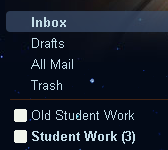
Step 2: Create the labels you want to use. I created one called Student Work and another called Old Student Work.

Step 3: Now have your students send you their assignments in an email.
When you receive that email it will enter your Inbox. To give it a new label click on the "move to" button and select the label you want to use.


That's it! Your student's work has been moved to the label and you can get to it whenever you want without cluttering up your Inbox or wasting trees. Once you are done with the email you can always Archive it or move it to another email.

I never delete any email I receive from a student or parent until they graduate in case there is a need to refer to it. Don't worry, Gmail gives you more than enough free storage space to do this.

Some other ideas for labels could be:
Parent Emails, Term Papers, Homework, Reports, etc.

Chat: Sometimes, email is not quick enough or powerful enough to get your point across. I have heard that 80% of what we say is through non-verbal communication, so you could imagine how frustrating or confusing it could be to just use email. Written and Voice chat come already installed in your Gmail account just click on a name (if you don't have any names listed, click the add contact button) and start typing to them. Or if you have a microphone you can begin talking back and forth as if you were on the phone.

The most significant use of Chat that I have found is through video chat. This does require a quick and free install and any $20 webcam. After going through those instructions, you can set up a video chat with your colleague, student, and anyone else that has a Gmail account. I have used this with Patrick Yurick, to create video conferencing with teachers on the opposite side of the country.

In an example from his classroom, he set it up so his Graphic Design students could create the music video for the band It's from the Sky. In order to receive feedback from the band members on the East Coast, these students in California presented their ideas via Gmail Video Chat. The final result was this amazing video.

Think about the possibilities, you could bring primary sources, authors, and experts from around the world into your classroom. I have seen Karl Fisch create amazing opportunties for his students to interact with experts through this type of medium (click here for an example). Coming back to the equity issue, we are no longer limited by our geographical location or ability to raise funds for travel, the world is just a click away and we can bring these to our students.

I hope that you have new ideas coming to mind as a result of these technologies. If you have any questions, tips, or ideas, please leave a comment below.

Next post: Google Documents and the power of collaboration!


Links:
GSites - Websites
GForms - Data Collection and Surveys

Google Apps Tutorial Part 1 Leveling The Playing Field

Here we are. The final Google Apps series post, yet last does not mean least. Google Sites is going to allow you and your students to share with the world what happens in the classroom.

To find this app, you will need to go to the top of your browser screen in Gmail where it says "Gmail, Calendar, Documents", etc. Click on the "more" button and then on "sites". From there you can add pages, links, pictures, and more. Most importantly, once you have put up your site and told your students about it, the information is there 24/7/365. Your students and parents can always know what they need to know, have worksheets and files, etc. which takes a huge load off your back (no more blank faces when students come back from an absence, no more having to reprint papers for students who lost them, and the list goes on).

You can go to the Google App Training link in the previous post to learn more in depth, or just click around the app. If you have ever used a word processor or Google Docs, then the website editor is very much the same and you will be able to pick up the basics pretty quickly. It is known as a WYSIWIG editor (What You See is What You Get) which means anything you type or add into the page is going to look exactly the same on the site.

So if you have never made a website before, you might feel a bit overwhelmed. However, I know from helping hundreds of students and adults make websites that it requires just some trial and error and messing around for a couple of hours, especially with Google Sites. It will take some refinement and it is ok if you website does not look perfect initially. You can always go back and change something or start over so the important thing is to just plunge in and start creating your site.

If you want more than just a bare bones Google Sites you can add some flair and flavor using the design templates. You can make as many sites as you like for all of the different needs you will find in your class.

One of the most helpful things about Google Sites (which is true for any the other Google Apps) is that unlike other website editors you can work on your website from anywhere with a Internet Browser and Connection. This is why so many people are making their personal and professional sites using Google Sites.

So when (and why) might you want to make a Google Site?

Teachers:

  • Post classwork and assignments
  • Collaborate on a wiki with students or colleagues
  • Share pictures of class events, projects, etc.
  • Share important links, dates (by inserting you calendar), video tutorials (check out the next post)
Students:

  • Your students can do everything you can do, but the main reason they will want to create a Google Site is to create a record of work for Universities, or potential Employers. Rather than having to keep track of everything they can upload it and then send the website link or download it all to a cd.
So I hope you and your students will create a Google Site and share all of the amazing things happening in your classroom with the world! If you need any more in depth coverage of a Google App, have a question, or  a suggestion for a use for a Google App, please leave a comment in the posts.


Links:
GSites - Websites
GForms - Data Collection and Surveys

Google Apps Education Training Center

I wanted to share with you a link I came across that goes along well with this series. While it is my intention to train and help in topics and areas for which there is no documentation and coverage, I would never want to reinvent the wheel.

http://edutraining.googleapps.com/Training-Home is a site that will actually take you through the Google Apps mentioned here in more detail.

I hope that this series has served to give you some ideas of how you might actually implement this in the classroom.

Stay tuned for the Google Sites post...